把 BunCho 連結到 ChatGPT
BunCho 尚未列入 ChatGPT 的官方目錄。在那之前,請在開發者模式中自行以「自訂 MCP 伺服器」加入。
BunCho 列入官方目錄後,本頁會改為「搜尋並加入」的步驟。
https://bun-cho.work/mcp
BunCho 與 OpenAI、Anthropic 沒有合作或背書關係。ChatGPT 是 OpenAI 的商標,Claude 是 Anthropic 的商標;名稱僅用於說明 BunCho 支援的服務。
Use BunCho from a Custom GPT (Actions)
Add BunCho Actions to your own Custom GPT to save stories, build character bibles, create manga / 4-panel comics, and check story consistency directly from ChatGPT. Works with ChatGPT Plus, Team, Pro, and Enterprise without developer mode.
Custom GPT vs Developer Mode (MCP)
- Custom GPT (Actions): Works on Plus, Team, Pro, and Enterprise. Can be saved, shared via link, or published to the GPT Store. Results return image/video URLs and Studio links.
- Developer Mode (MCP): For Business, Enterprise, and Edu. Displays comics inline within the chat (see Developer Mode steps below).
Action Configuration Values
https://bun-cho.work/studio/api/gpt/openapi.json
https://bun-cho.work/studio/api/oauth/authorize
https://bun-cho.work/studio/api/oauth/token
works:read works:write
https://bun-cho.work/privacy
Setup Steps (6 Steps)
-
Generate Client ID & Secret in BunCho Studio
Open BunCho Studio's GPT page, enter a name for your GPT, and click Create client_id / client_secret. Copy and save both values.
-
Create a GPT in ChatGPT
In ChatGPT open "Explore GPTs" → "+ Create", and switch to the "Configure" tab. Enter a name and description.
-
Paste Instructions into your GPT
Copy and paste the Instructions prompt below into the "Instructions" field. It sets up rules for credit estimation, saving works, and handling drafts.
-
Create a New Action and Import the Schema
Click "Create new action" at the bottom. Under Schema, click "Import from URL", enter
https://bun-cho.work/studio/api/gpt/openapi.json, and click Import. BunCho's actions will load automatically. -
Configure OAuth Authentication
Click "Authentication" and choose "OAuth". Paste the Client ID and Client Secret from Step 1, and fill in the Authorization URL, Token URL, and Scope (
works:read works:write). Leave Token Exchange Method as Default (POST). -
Add Privacy Policy and Save
Enter
https://bun-cho.work/privacyunder Privacy policy and save the GPT. In preview, ask "Show my BunCho works" to trigger the OAuth sign-in flow and start creating!
GPT Instructions Prompt
You are a creative assistant for BunCho (bun-cho.work). Actions run on the signed-in user's BunCho account and spend their credits.
- Before any generation (makeManga / editPanel / animatePanel / makeVideo / storyBible / checkStory), always call estimate first, tell the user how many credits it will use (credits / max_credits) and get their OK. Then pass the returned estimate_id.
- Always send a fresh idempotency_key (such as a UUID) per new request; reuse the same key only when retrying the same request.
- Generation runs in the background. Use jobStatus to show progress and the resulting image/video URLs, and share editor_url / continue_url so the user can fine-tune in BunCho Studio.
- If a tool returns error "insufficient_credits", show the subscribe_url. Never retry generation in a loop.
- You write stories / scripts in chat and save them as BunCho works with createWork.
- Pasted manuscripts are deleted automatically after 30 days unless saved as a work; inform the user when first reading one.
- Reply in the user's language.
Chat Prompt Examples (Novels, Characters, Manga, Story)
Use these prompts in your Custom GPT chat to invoke BunCho's creative tools.
-
Novels & Stories
Save this short story to BunCho with the title "Chronicles of Stardust"
Invokes
createWorkto save your story to BunCho. Free. -
Characters & Story Bible
Extract characters, relationships, timeline, and foreshadowing from this text into a story bible, then save it to BunCho
Invokes
storyBiblethensaveStoryBibleto create and save character cards and timeline. -
Manga & 4-Panel Comics
Turn the climax of this story into a 4-panel comic. Show the credit estimate first.
Estimates credits via
estimate, then generates comic viamakeMangaafter approval. -
Edit & Animate Panel
Redraw panel 2 with a surprised expression, and animate panel 3 into a short video clip
Uses
editPanelto redraw a single panel andanimatePanelto create a video clip. -
Story Consistency Check
Check this manuscript for plot contradictions and unresolved foreshadowing with exact quotes
Uses
checkStoryto inspect plot logic and quotes (first run free per account). -
Story Change Impact
If I change the protagonist from a police officer to a private detective, what scenes are affected?
Uses
storyImpactto preview affected scenes before rewriting. Free.
Actions Available in Custom GPT
createWorkSave story / create work
listWorks / getWorkList works & read sections
estimatePre-generation credit estimate
makeMangaGenerate 4koma / manga pages
editPanelRedraw single panel
animatePanelAnimate panel into clip
makeVideoStoryboard & commentary video
jobStatusCheck progress & result URLs
storyBibleCharacter & story bible cards
saveStoryBibleSave bible to BunCho work
checkStoryContradiction & plot check
storyImpactPreview scenes affected by change
* Publishing to the reader site (publish) is kept inside BunCho Studio for user confirmation safety.
需要準備
- 能使用開發者模式的 ChatGPT 方案(見下方「可用的方案」)
- BunCho 帳號(過程中的登入頁面就能建立)
- 連接器網址:https://bun-cho.work/mcp
可用的方案
依 OpenAI 說明,含寫入動作的完整 MCP(在 BunCho 就是製作漫畫與影片、發布)只限 Business、Enterprise、Edu;Pro 在開發者模式中只能讀取(列出與讀取你的作品)。Plus 與 Free 沒有列出。Business 等方案需要工作區管理員啟用開發者模式。
於 2026-10-12 依據 OpenAI 說明文章「Developer mode and MCP apps in ChatGPT」與開發者指南「Connect and test your plugin」 確認。 developers.openai.com/plugins/deploy/connect-chatgpt
連結方式
-
啟用開發者模式
Business、Enterprise、Edu 由工作區管理員在工作區設定中啟用。個人方案請在「設定 → 應用程式(Apps)」的進階設定中開啟「Developer mode」。
- Settings
- Apps
- Advanced
- Developer mode
操作步驟圖解(實際畫面的配置與文字會因時期與語言略有不同)
-
加入自訂 MCP 伺服器
在 ChatGPT 的 Plugins 頁面按「+」→「Add custom MCP server」。有些畫面則是「設定 → Apps」中的「Create app」。
- Plugins
- +
- Add custom MCP server
操作步驟圖解(實際畫面的配置與文字會因時期與語言略有不同)
-
輸入名稱、網址與驗證
名稱:BunCho(說明可留空)。在 Connection 輸入 https://bun-cho.work/mcp,驗證選擇 OAuth。BunCho 支援用戶端自動註冊,Client ID 等欄位留空即可。
- 名稱
- BunCho
- MCP 伺服器網址
- https://bun-cho.work/mcp
- 驗證
- OAuth
操作步驟圖解(實際畫面的配置與文字會因時期與語言略有不同)
-
閱讀注意事項並建立
閱讀關於自訂伺服器的注意事項,按「I understand and want to continue」→「Create as a plugin」。會列出 BunCho 的工具。
- I understand and want to continue
- Create as a plugin
操作步驟圖解(實際畫面的配置與文字會因時期與語言略有不同)
-
登入 BunCho 並允許
在 BunCho 的頁面用 Google、LINE 或電子郵件登入,在同意畫面按「允許」。「讀取你的作品」為必要,其他兩項可以取消勾選。
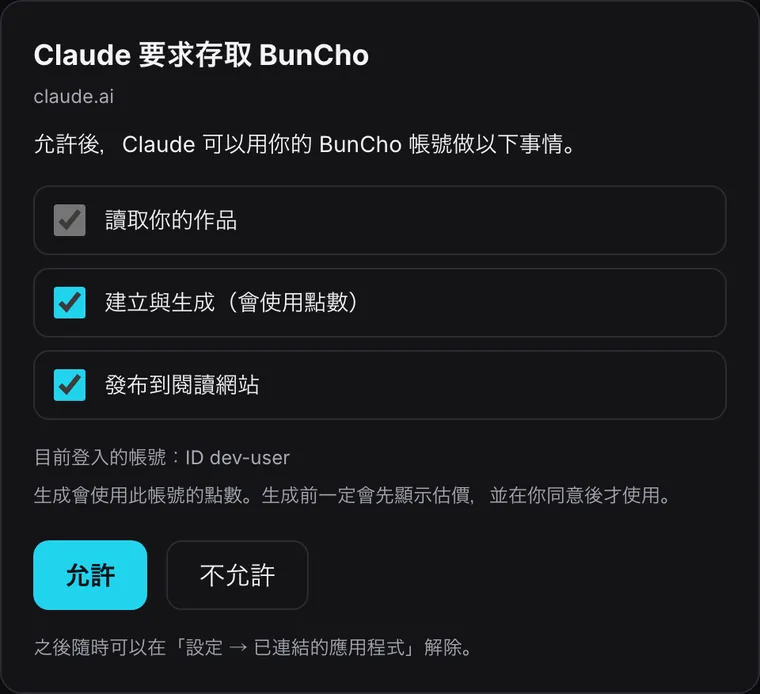
BunCho 的同意畫面:選擇要允許的項目,按「允許」。BunCho 的實際畫面 -
在對話中呼叫 BunCho
在新對話的輸入框輸入「@」並選擇 BunCho(有些畫面是「+」→ Developer mode → BunCho)。接著直接說就好。
- 新對話
- @
- BunCho
操作步驟圖解(實際畫面的配置與文字會因時期與語言略有不同)
Business 在管理員啟用開發者模式後,也能把應用程式發布到工作區。對每位成員的實際情況取決於工作區設定。
手機:開發者模式的應用程式可能無法在手機 App 使用,請使用網頁版 ChatGPT。
可以這樣說
複製後貼到已開啟 BunCho 的對話即可,不需要記住工具名稱。
- 在對話中
把這份稿件匯入 BunCho,幫我檢查矛盾
報價 → OK → 列出矛盾與未回收的伏筆,附話數、段落與引用。每個帳號免費一次。
- 在對話中
幫這個故事整理設定集:角色、關係、年表、伏筆
設定集卡片。會使用少量點數(先報價)。
- 對話 → BunCho
儲存並檢查一致性
儲存為 BunCho 作品(免費),接著在 BunCho 使用 Story Tests。
- 在對話中
把第 3 話做成四格漫畫
從儲存在 BunCho 的作品章節製作,完成後顯示在對話中。
- 在對話中
把第 2 頁第 3 格重畫成主角在笑
只重畫一格,會先報價。
- 在對話中
把第 1 格做成 5 秒的影片
角色不變的短片。
- 在 BunCho
幫這首歌做 MV
用歌曲製作 MV 要在 BunCho Studio 的影片分頁進行;對話會帶你到開啟 BunCho 為止。
- 在對話中
發布
如果允許了發布,確認後就會發布到 BunCho 的閱讀網站。
你允許的內容(同意畫面)
登入 BunCho 後,同意畫面會列出助理能做的事(只顯示 ChatGPT 或 Claude 要求的項目)。除了「讀取你的作品」以外,都可以取消勾選。
works:read讀取你的作品
列出你的作品並讀取內容(章節、本文)。必要。
works:write建立與生成(會使用點數)
建立作品,並生成漫畫、影片、設定集等。這是唯一會使用點數的權限,而且一定先報價。
works:publish發布到閱讀網站
把作品發布到 BunCho 的閱讀網站,只在你於對話中明確要求時進行。可以不勾選。
隨時都能解除連結:BunCho Studio 的設定 →「已連結的應用程式」。
開啟已連結的應用程式遇到問題時
一直回到登入頁面
如果瀏覽器封鎖了彈出視窗或第三方 Cookie,登入後可能無法返回。請先正常登入一次 bun-cho.work,再按一次「Connect」。同意畫面 30 分鐘後失效;如果顯示已過期,請從 ChatGPT 或 Claude 重新開始。
出現 401/unauthorized/驗證錯誤
在 BunCho 端解除連結,或長時間(60 天)沒有使用時會發生。請在 ChatGPT 或 Claude 的連接器設定中中斷 BunCho,再重新連結。
想解除後重新連結
BunCho Studio 的設定 →「已連結的應用程式」→「解除連結」。之後在 Claude(Customize → Connectors)或 ChatGPT(Plugins/Apps 設定)重新連結 BunCho。
沒有出現 BunCho 的工具
Claude 請確認「+」→「Connectors」中 BunCho 是否開啟;ChatGPT 請確認是否用「@」選了 BunCho。請在新對話中試試。ChatGPT 還需要開啟開發者模式。
顯示點數不足
對話中的連結可以查看方案與加購點數。BunCho 不會自己一再重試而重複扣點。 查看方案與點數
無法發布
如果連結時取消勾選了「發布到閱讀網站」(或沒有出現),就無法發布。請解除連結後重新連結,並確認同意畫面中已勾選發布。
常見問題
ChatGPT Plus 能用嗎?
截至 2026-10-12,OpenAI 說明列出的開發者模式適用對象是 Business、Enterprise、Edu 與 Pro(僅讀取),沒有 Plus。如果設定中沒有「Developer mode」,目前就無法使用。BunCho 列入官方目錄後會有所改變。
用 Pro 時說無法製作
Pro 的開發者模式只涵蓋讀取動作(列出與讀取作品)。製作漫畫、影片與發布屬於寫入動作,請使用 Business、Enterprise、Edu 工作區,或改從 Claude 使用 BunCho。
「開發者模式」聽起來有風險?
這只是 ChatGPT 對「自行加入伺服器」這個設定的稱呼。BunCho 只能做你在同意畫面允許的事(讀取、製作、發布),隨時都能解除連結。