Make a Four-Panel Comic on Your Phone, No App or Drawing Skills
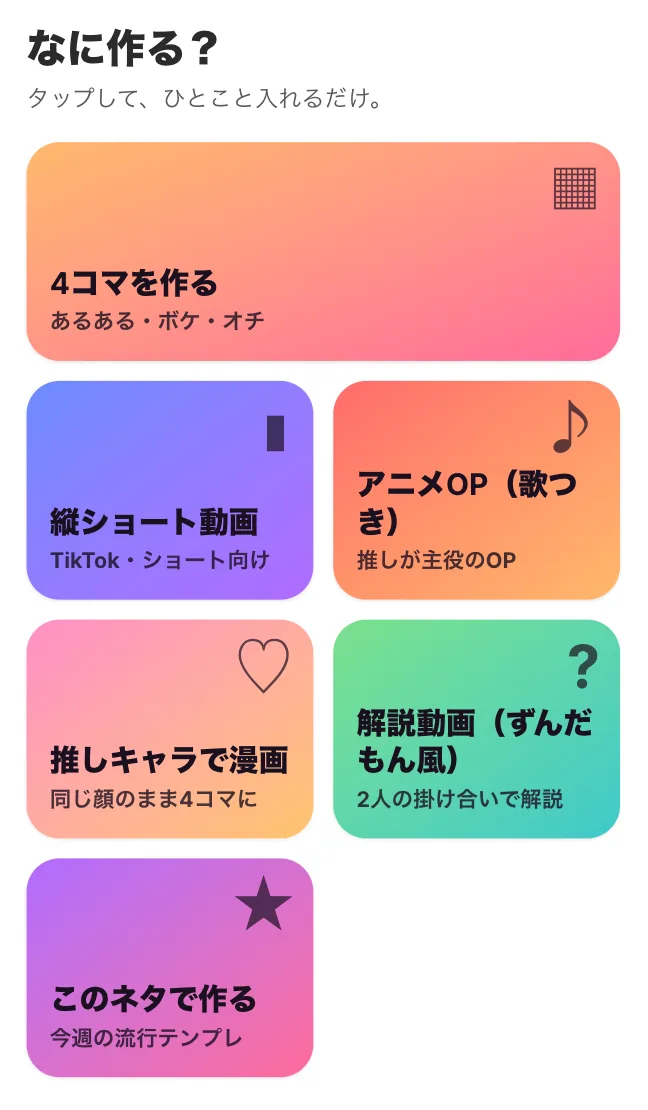
You'd like to make a four-panel comic strip (what Japan calls "4koma"), but you have no PC, no drawing tablet and not much confidence in your drawing. You can still make one from your phone's browser by typing a single line. This guide uses BunCho's Quick Create to walk from picking a premise to saving an image ready to post. No app install needed.
Think in four beats: setup, build, twist, payoff
The classic four-panel strip shows the situation in panel 1, develops it in panel 2, flips it in panel 3 and lands the punchline in panel 4. Many strips that do well on social media open with a situation readers instantly recognize from their own lives.
You don't need to draw, because BunCho (pronounced "boon-cho" — Japanese for "Java sparrow") handles the art and the speech balloons. You only decide two things: what it's about, and where the laugh lands. One line of premise is enough.
- Setup: a situation everyone knows (the night before an exam, you suddenly want to clean your room)
- Build: it goes a little further (the cleaning gets serious)
- Twist: something unexpected (an old notebook turns up at the back of the closet)
- Payoff: the punchline (you read it all night and it's morning)
Tips for writing your premise
You can leave the premise field empty and let the AI choose. Still, a line of your own makes it more likely readers will think "so true."
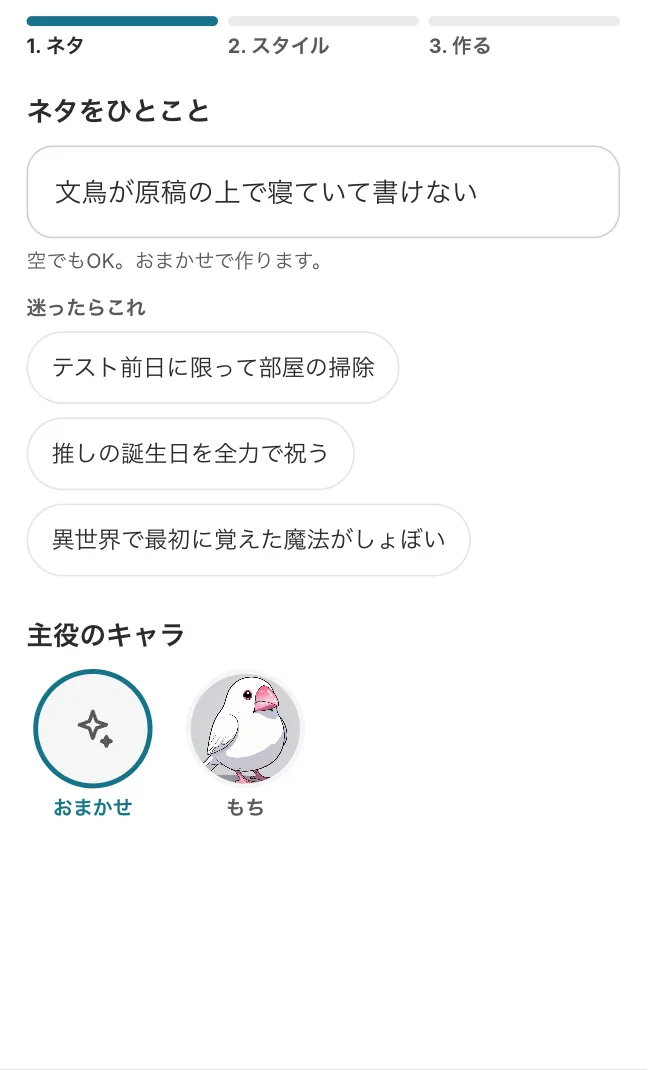
- Include who and what: "my sparrow fell asleep on my manuscript and I can't write" says who is doing what
- Skip the punchline: the AI suggests punchlines, so the situation is enough
- One idea per strip: two stories won't fit in four panels
- Stuck? Pick from the suggested ideas or this week's trending templates
Make a four-panel comic on your phone, step by step
Here is the flow after opening /studio/make (Quick Create) in your phone's browser. You can try everything up to entering a premise and picking an art style without logging in.
-
1Open Quick Create and choose the four-panel comic
Open bun-cho.work/studio/make on your phone and tap the four-panel comic option. You can also choose a vertical short video, an anime opening, manga with your favorite character, an explainer video or this week's trending templates.
-
2Write a premise and pick the lead
Write one line in the premise field, or leave it blank to let the AI decide. For the lead, choose automatic or one of the ready-made characters, such as Mochi, BunCho's official Java sparrow.
-
3Swipe through samples to pick a layout and finish
Swipe the sample images left and right to choose the strip format and art style. For the finish, choose between fast and high quality.
-
4Log in and create
Tap the big button to create. At this point you log in with Google or LINE (a messaging app popular in Japan); the login page is in Japanese. Your premise and choices carry over. You see a credit estimate before anything is made and are asked to agree when needed.
-
5Fix, save and share
You can revise the finished strip with words, redraw it, save it to your device, share it or publish it. If one panel bothers you, fix only that panel.
Draw your original character with the same face every time
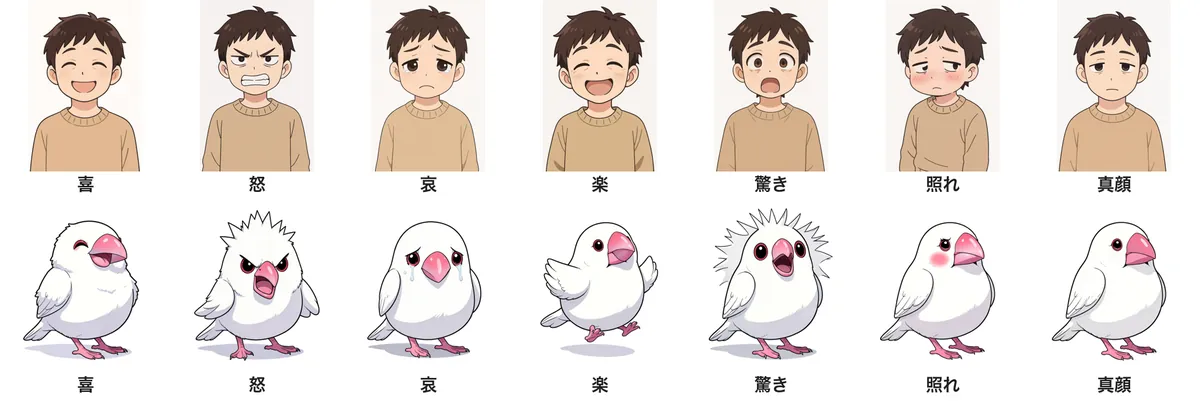
If you post strips regularly, your lead needs a consistent face. Create a reference sheet in the Studio's manga screen and lock it, and every panel draws the same face, hair and clothes. You can also batch-generate expressions: joy, anger, sadness, fun, surprise, embarrassment and neutral.
Save a locked character to your character library and you can use the same face in other strips, manga and video. Mochi, the official character, is free to use.
See also: How to keep an AI character consistent
Pick a strip format from the templates
Not sure what kind of strip to make? Starting from a template is the shortcut. The Studio's templates cover the strip formats you often see on social media.
-
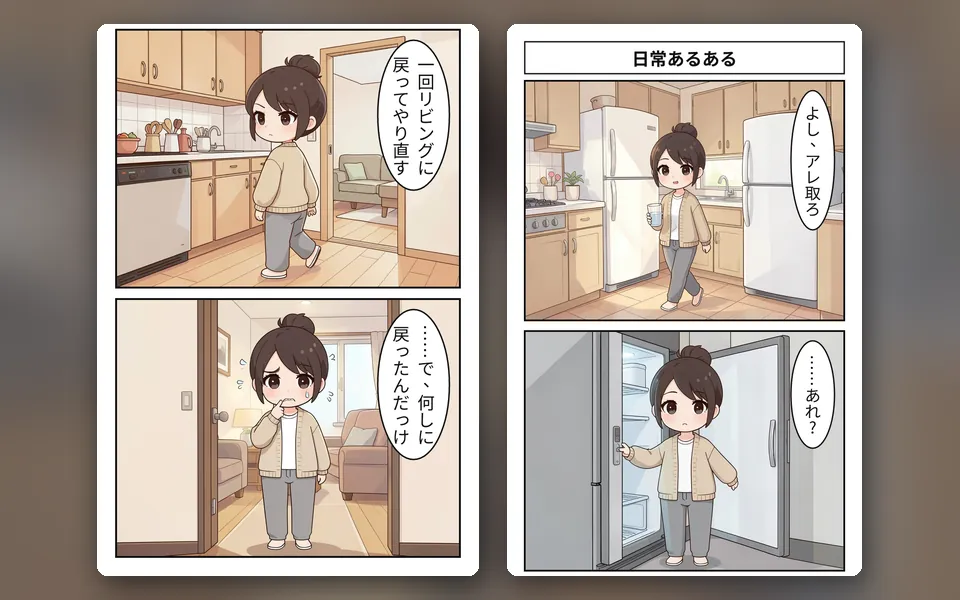
Everyday relatable moments
Relatable moment, an overreaction, then an even worse relatable moment. A vertical strip that works as the first of a daily series.
Use this template -
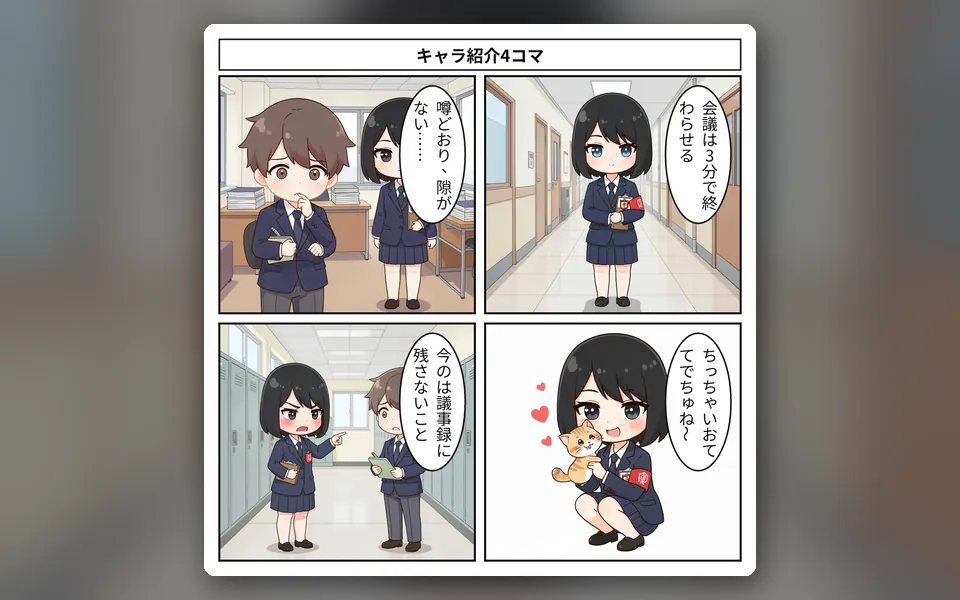
Character intro strip
Public face, surprising side, a failed cover-up. A 2x2 strip for introducing a new character.
Use this template -
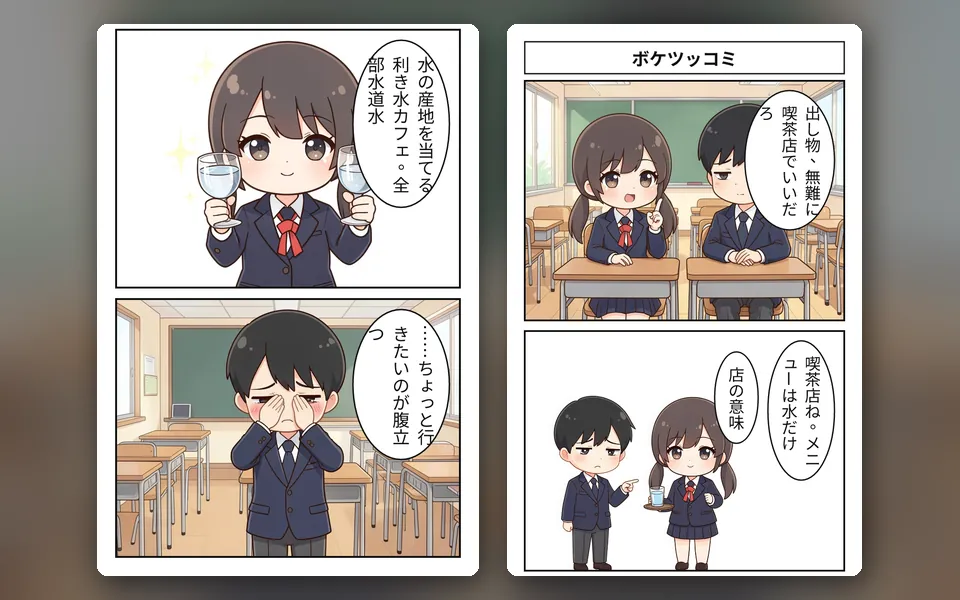
Comedy duo
Two characters riff off each other, with the punchline in panel 4. Lock the characters to make it a series.
Use this template -
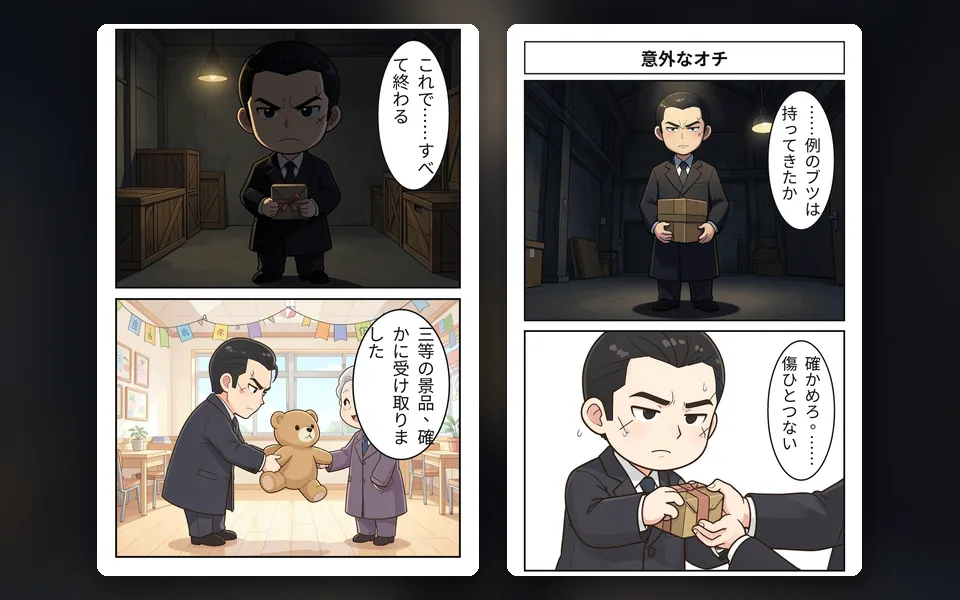
Twist ending
Three panels of setup, flipped on its head in the final panel.
Use this template
Save at the right size for Instagram and X
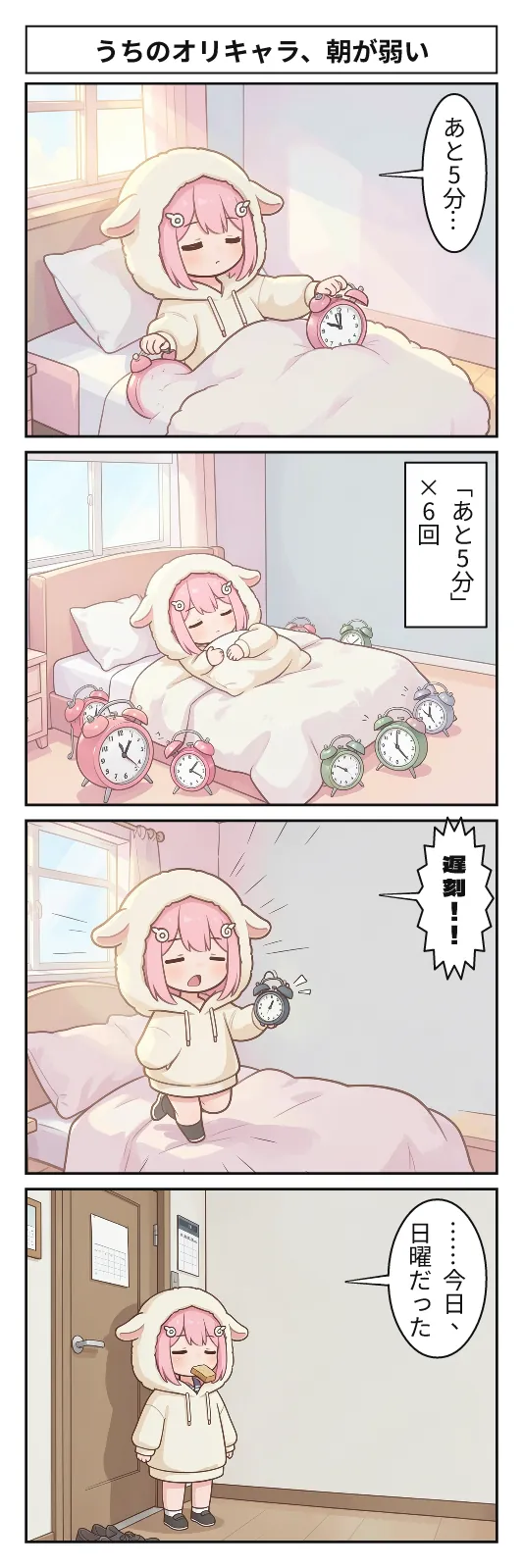
You can lay out the four panels vertically, as a 2x2 grid or horizontally. For a square Instagram post, 2x2 fits well; for X or a tall phone screen, a vertical strip fits best.
The export tab in the Studio's manga screen offers a single image for social media (such as 1080x1350 portrait for X), one image per panel, PDF and more. To post, download the image and upload it to each platform. You can also turn the strip into a vertical video for shorts.
See also: BunCho Studio overview
What you can try for free, and credits
In Quick Create, you can enter a premise and choose an art style without logging in. To actually create, you need the Studio (free for your first 7 days, with 500 credits during the trial). The free trial that turns your own story into a four-panel strip (/studio/try) gives one strip per day once you log in.
Credits per strip depend on the number of panels and image quality, and you see an estimate before creating. On the higher plans, strips made on BunCho's own GPUs cost 0 credits up to a guideline limit.
FAQ
Do I need to install an app?
No. It runs in the browser, so open bun-cho.work/studio/make on your phone and start.
Can I make a comic if I can't draw?
Yes. Enter a premise and choose an art style, and the Studio handles the art and speech balloons. You can redraw only the panels you want to change.
Can I use characters from my favorite anime, or celebrities?
No. Please create original characters. Names and looks of real people or characters from existing works cannot be used.
Is it free?
You can enter a premise and pick an art style without logging in. To create, you need the Studio, which is free for your first 7 days. The story-to-strip trial gives one free strip per day.
Pages we checked for this guide
- BunCho Studio (English) bun-cho.work · primary source
Features, prices and screens are as of October 12, 2026 and may change. Images are actual BunCho screens (some show the Japanese interface) and samples made in the Studio. Japanese original