Turn Your Novel into Manga with AI: Four-Panel, Pages or Webtoon
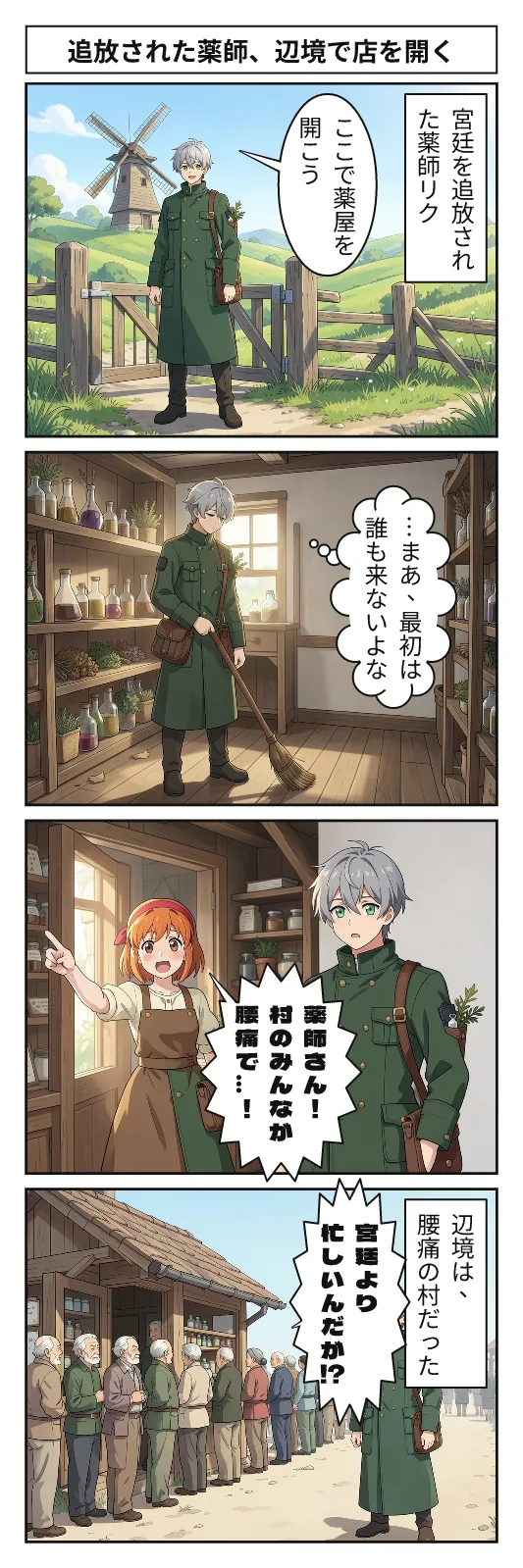
You've started a serial, but text alone makes it hard to get people to open chapter 1. More and more writers turn a key scene into manga and share it on social media. This guide walks through turning your novel into manga in BunCho Studio, from choosing a scene to exporting. The trial four-panel strip is free, one per day, once you log in.
What changes when your novel becomes manga
Readers on story sites decide in seconds, from the title and blurb, whether to read. A single manga image can convey the characters' faces, the mood of the scene and what makes the story fun in those few seconds. On social media, images catch the eye more than text announcements, and a key-scene strip becomes a doorway that says "read the rest in the novel."
The other benefit is that you see your own work afresh. Making manga means breaking each scene down into who, where, doing what and feeling what. Along the way you notice scenes with too much explanation or dialogue that doesn't flow.
Choosing the scene to adapt
For your first one, a scene that shows the characters' situation at a glance is safer than your most famous scene. Scenes like these work well.
- Two or three characters at most, with the story moving through dialogue
- A single event with a setup and a reversal (that becomes the strip's punchline)
- A moment where a character's expression changes sharply
- It makes sense on its own, even without reading earlier chapters
Turn a novel into manga in the Studio
Here's the actual flow in BunCho Studio. BunCho (pronounced "boon-cho" — Japanese for "Java sparrow") is a story studio where the same story becomes text, manga and video. If your manuscript lives in another service, you can import it from a file.
-
1Import your manuscript
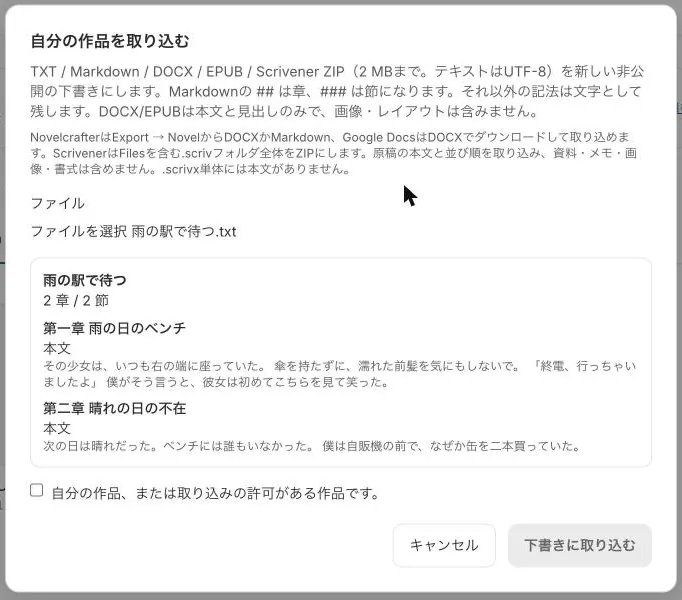
Choose Import in the project list and select a TXT, Markdown, DOCX, EPUB or Scrivener (ZIP) manuscript. You preview the chapters and sections before they become a draft, so any wrong splits show up right away. The original on your story site stays as it is.
-
2Open a chapter and make it a four-panel strip
Open the chapter and choose to turn it into a four-panel strip. For page manga, select page format in the manga screen, choose to turn the chapter into manga, and decide where to stop: rough layout only, clean art, or all the way.
-
3Pick a structure and check the rough layout
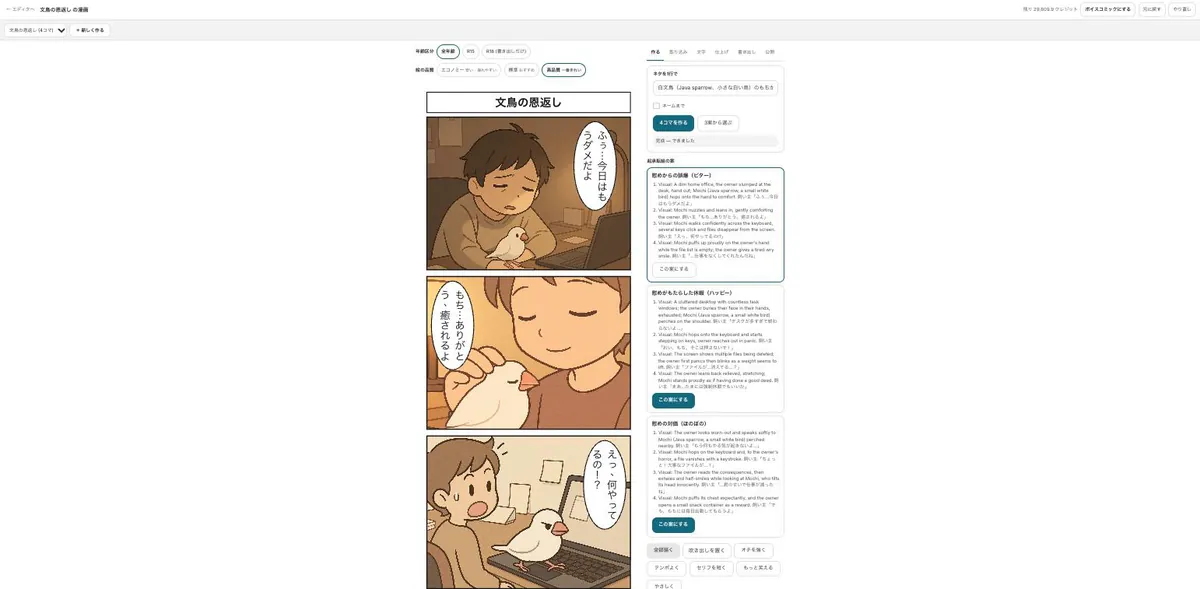
For a four-panel strip you get three setup-build-twist-payoff options; pick the one whose punchline works best. Choose rough layout only to stop at panel layout and dialogue before any art. Fixing structure here means fewer redraws later.
-
4Create and lock character reference sheets
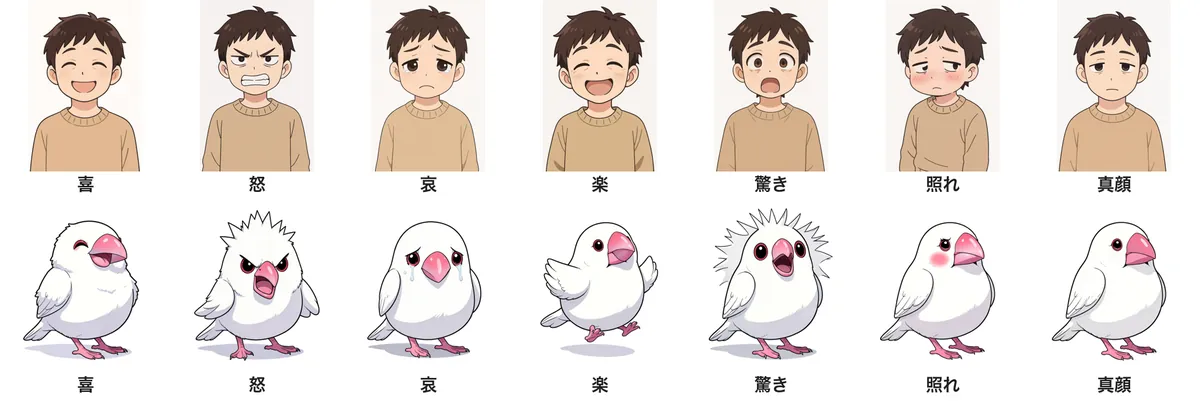
Create a reference sheet in the character panel of the manga Create tab and lock the one you like. Locked characters keep the same face, hair and clothes in every panel. Describing their looks in your novel's character profiles makes the sheets more accurate.
-
5Draw the art and place speech balloons
Check the credit estimate and run it. When all panels are drawn, place the speech balloons. If one panel bothers you, use the fix-this-panel option to change expression, angle, background or dialogue.
-
6Export and promote
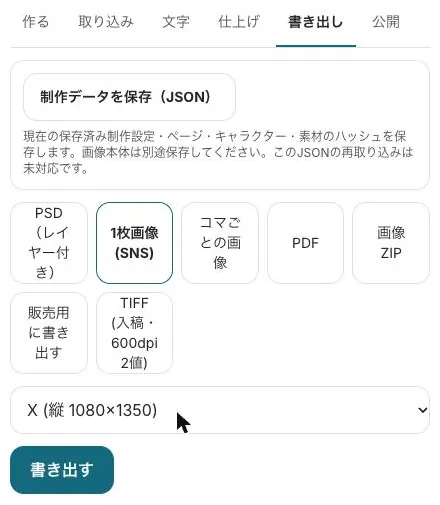
In the export tab, choose a single image for social media, one image per panel, PDF, or split images for Webtoon uploads. The promo kit also makes announcement images and post text in Japanese and English.
Four-panel, page manga or Webtoon?
Even from the same chapter, the best format depends on where you post.
- Four-panel strip (vertical, 2x2 or horizontal): for announcements on X or Instagram. Self-contained in one image, and the punchline leads naturally to the next chapter
- Page manga: handles two-page spreads, page numbers and bleed, so it suits one-shots, self-published fan comics and manga contest entries
- Webtoon (vertical scroll): full-color comics read by scrolling down on a phone. Exports split for WEBTOON CANVAS at 800px wide and up to 1280px per image
-
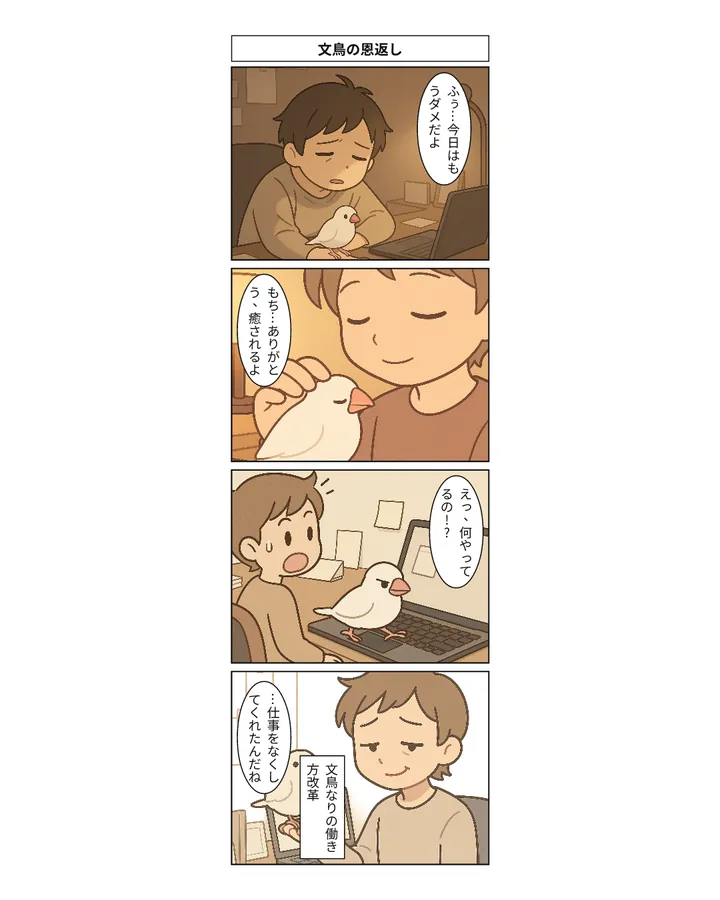
A key scene as a strip
Open a chapter and turn it into a four-panel strip. Start with the free trial, one per day.
Try it with your story -
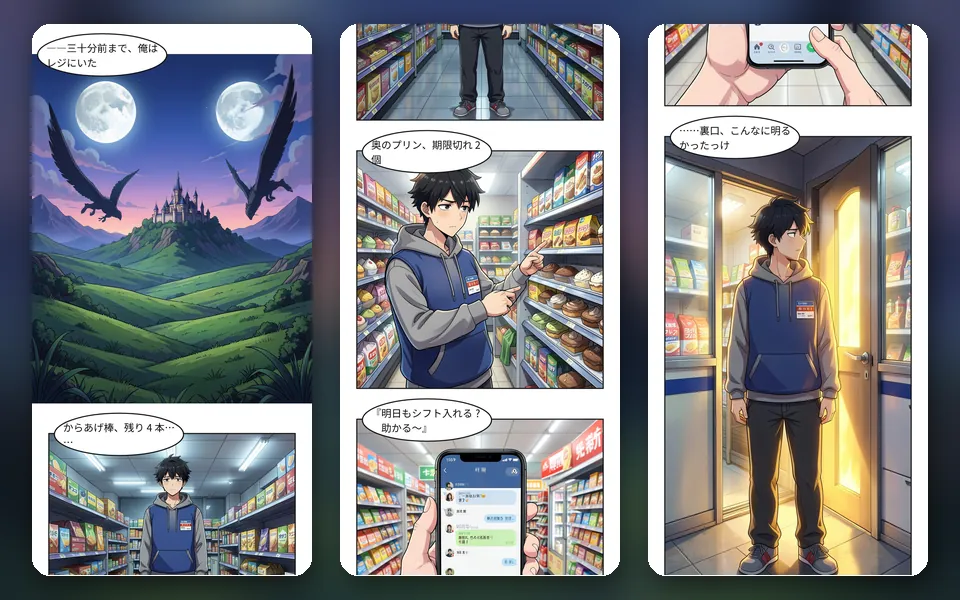
Chapter 1 as a Webtoon
A template that turns chapter 1 of an isekai (transported-to-another-world) story into vertical scroll, for phone readers.
Use this template
Credits and what you can try for free
The "turn your novel into manga too" trial (/studio/try) lets you make one four-panel strip per day once you log in, even without a paid plan. Paste your text or enter the URL of your own work.
Manga made in the Studio uses credits based on the number of panels and image quality (economy, standard or high), and you always see an estimate before it runs. On the higher plans, images, four-panel strips and manga panels made on BunCho's own GPUs cost 0 credits up to a guideline limit. The Studio is free for your first 7 days.
See also: Import your manuscript / BunCho Studio overview
Check where you're posting
Manga made from your own novel can be used to promote your own work. But story sites and manga contests each have rules on AI-made work, such as whether it must be labeled or is accepted at all, and those rules can change. Check the destination's current guidelines before posting.
See also: Commercial use of AI-made work
FAQ
Can I turn my novel into manga if I can't draw?
Yes. Choose a scene and the Studio takes it from rough layout (panels and dialogue) to finished art and speech balloons. You can redraw only the panels you don't like.
Won't the characters' faces change from panel to panel?
Create a reference sheet and lock it, and every panel uses the same face, hair and clothes. You can also generate expression sheets in one batch.
Can I try it for free?
The trial four-panel strip (/studio/try) is free, one per day, once you log in. The Studio itself has a 7-day free trial with 500 credits.
Can I post the manga on story sites or social media?
Manga made from your own work can be used to promote it. Each site has its own rules on AI use, so check its current guidelines before posting.
Pages we checked for this guide
- BunCho Studio (English) bun-cho.work · primary source
Features, prices and screens are as of October 12, 2026 and may change. Images are actual BunCho screens (some show the Japanese interface) and samples made in the Studio. Japanese original