Turn a ChatGPT or Claude Chat into Manga with the BunCho Connector
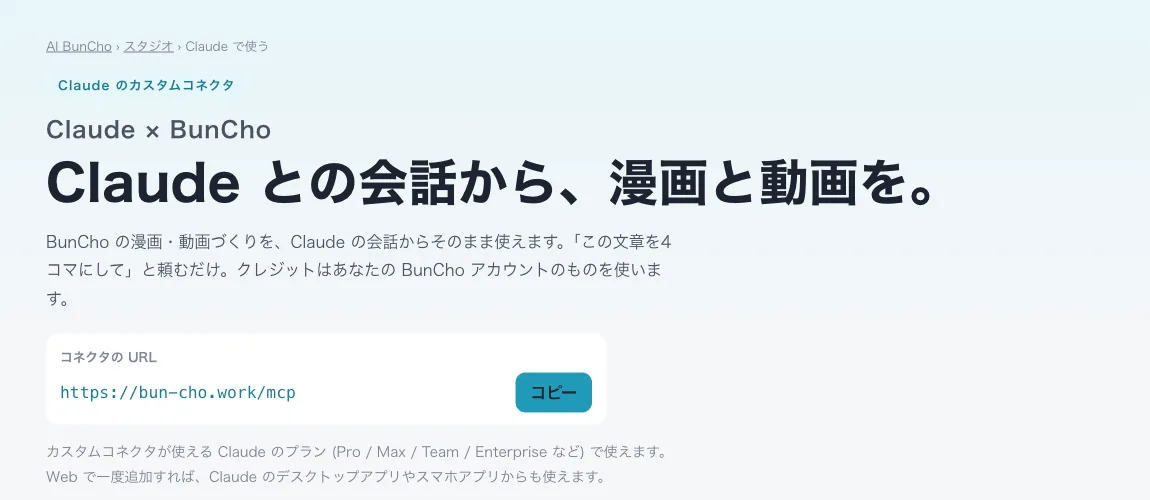
After brainstorming a story in ChatGPT or Claude, turning that text into manga used to mean pasting it into another tool. With BunCho's connector (an MCP server) added, you just ask in the chat, "turn this into a four-panel comic," and BunCho makes the manga or video. Your first connection comes with free credits worth three manga pages.
How making manga from a chat works
ChatGPT and Claude support connectors, which let the assistant call outside services as tools. Once you add BunCho's connector, the assistant can use BunCho's tools in the conversation: reading your projects, making manga, fixing a single panel, turning it into video, publishing and more. You don't need to know the tool names. Just ask in plain language.
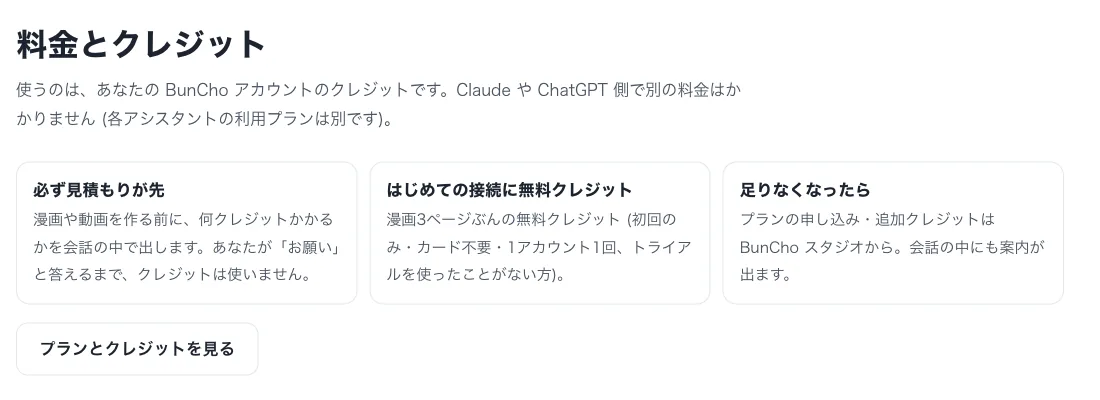
Credits come from your BunCho account; ChatGPT or Claude charge nothing extra (your assistant subscription is separate). Finished manga and videos are saved as projects in your BunCho account and can also be opened from the Studio's project list. BunCho (pronounced "boon-cho" — Japanese for "Java sparrow") is an AI story studio where the same story becomes text, manga, video and audio.
Connect in Claude
This works on Claude plans that support custom connectors (Pro, Max, Team, Enterprise and others). On Team and Enterprise, an admin must allow adding connectors. Add it once on the web and it's available in the desktop and mobile apps on the same account.
-
1Open connector settings
On Claude.ai, open Settings and then Connectors.
-
2Add a custom connector
Click Add custom connector, enter BunCho as the name and https://bun-cho.work/mcp as the URL, and add it.
-
3Connect and sign in to BunCho
Click Connect and the BunCho sign-in page opens (it is in Japanese). Sign in with Google, LINE or an email address.
-
4Allow access
On the permission screen, review what Claude will be able to do (read, create and publish projects) and allow it.
-
5Turn BunCho on in a chat
In a new chat, turn on BunCho from the + (tools) menu in the message box. Then just ask.
Connect in ChatGPT
In ChatGPT, this works on plans with developer mode, which lets you add your own connectors (Plus, Pro, Business and others). Availability can change on ChatGPT's side, so check whether developer mode appears in your settings. Business workspaces may need admin approval. In ChatGPT, previews of the finished manga pages appear right in the conversation.
- In Settings, go to Apps & Connectors, then Advanced settings, and turn on Developer mode
- Click Create (add a connector), enter BunCho as the name and https://bun-cho.work/mcp as the MCP server URL, choose OAuth for authentication and create it
- Sign in on the BunCho sign-in page and allow access on the permission screen
- In a new chat, choose BunCho from the + menu (or developer mode's tools) in the message box
Things you can ask
Ask naturally as the conversation goes. Name a chapter or a panel position and only that part is made or fixed.
- Show me my projects on BunCho
- Turn this text into a four-panel comic
- Make chapter 1 of "The Library of Falling Stars" into a three-page manga
- Redraw panel 3 on page 2 so the hero is smiling
- Turn panel 1 into a 5-second video
- Make chapter 1 into an explainer video
- Before making the manga, estimate how much it will cost
Estimates and free credits
Before making manga or video, the assistant shows in the chat how many credits it will take. No credits are used until you say go ahead.
Your first connection comes with free credits worth three manga pages (first time only, no card needed, once per account, for people who have not used the trial). When you run low, subscribe to a plan or add credits in BunCho Studio. The chat will point you there too.
Publishing and disconnecting
Before any project is published, the assistant always confirms with you in the chat. Nothing is published without your say. You can also choose not to grant the publishing permission (works:publish).
To stop using the connector, disconnect it in BunCho Studio under Settings, then Connected apps. You can also remove it from the connector settings in Claude or ChatGPT.
FAQ
Does this work on Claude's free plan?
It depends on whether your Claude plan supports custom connectors. It works on plans that do, such as Pro, Max, Team and Enterprise.
Whose credits are used?
Your BunCho account's credits. They are separate from your ChatGPT or Claude subscription, and the assistant won't bill you extra. You see an estimate first, and credits are used only when you agree.
Can I try it for free?
Your first connection comes with free credits worth three manga pages (first time only, no card needed, once per account, for people who have not used the trial).
Where is the manga I make saved?
As a project in your BunCho account. You can also open it from the project list in BunCho Studio.
Could something get published without my permission?
No. The assistant always confirms in the chat before publishing. You can also decline the publishing permission or disconnect later.
Pages we checked for this guide
- Use BunCho in Claude (connector guide) bun-cho.work · primary source
- Use BunCho in ChatGPT (connector guide) bun-cho.work · primary source
- BunCho Studio (English) bun-cho.work · primary source
Features, prices and screens are as of October 12, 2026 and may change. Images are actual BunCho screens (some show the Japanese interface) and samples made in the Studio. Japanese original