How to Keep an AI Character Consistent Across Manga and Video
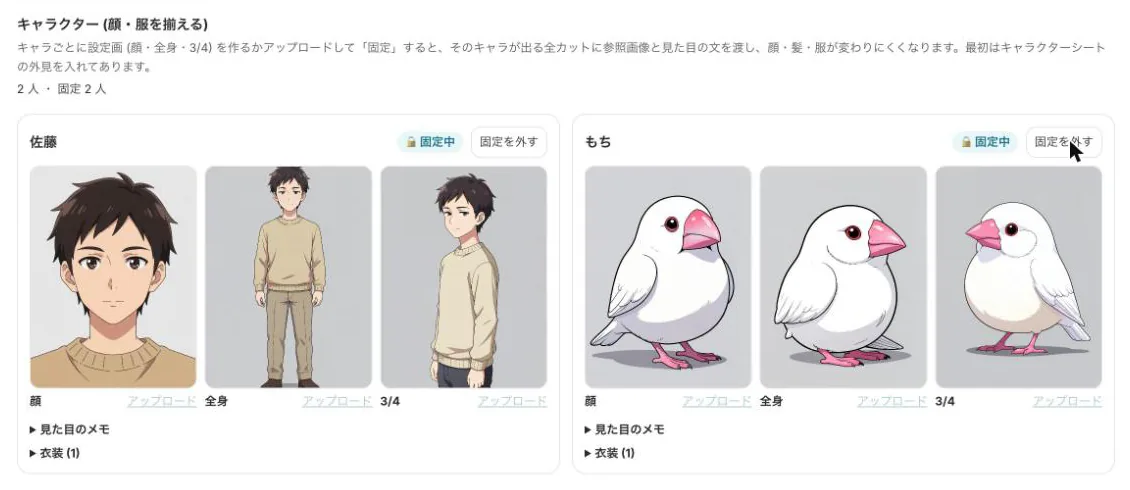
When you make manga or video with AI, your lead's hair or clothes can change from panel to panel. Readers follow a story because they recognize the same person. This guide explains how to think about visual consistency, and how to lock a character's reference sheet in BunCho so the same face appears in four-panel strips, page manga and video.
Why AI keeps changing your character
An image model builds each picture from a text prompt, one image at a time. If you only write "a young man with black hair," any young man who fits that description will do, so the face changes from panel to panel. To keep it steady, you need to pass along a reference picture that says "this person" every single time, not just words.
Locking a character in BunCho (pronounced "boon-cho" — Japanese for "Java sparrow") does exactly that: it sends the reference sheet and the written description of the character's look to every panel and every shot the character appears in. Locking does not make every image identical, but it makes the face, hair and clothes much less likely to drift.
Describe what stands out and never changes
Reference sheets get better when the character profile describes the character's look well. Writing in this order helps both the AI and your readers.
- Silhouette first: hairstyle, hair length, height and build
- Colors: hair, eyes and clothes, written specifically ("navy blazer," not just "jacket")
- Signature items they always wear: glasses, earrings, an armband
- Leave out things that change, like expressions and poses. Put those in each panel's instructions instead
How to create and lock a reference sheet
-
1Write the look in the character profile
In your project's Characters tab, describe the hair, eyes, clothes and so on. This description carries over to the characters when you make manga or video from the same story.
-
2Generate a reference sheet
For manga, use the character panel in the Create tab; for video, use the Characters tab. Choose to generate a reference sheet. For video you make three images: face, full body and three-quarter view. You can also upload your own character art instead.
-
3Lock the sheet you like
Press Lock and the character is marked as locked. Add outfit variations from the outfits option. In video, you can turn on one automatic retry for shots where the character drifts.
-
4Match colors and build an expression sheet
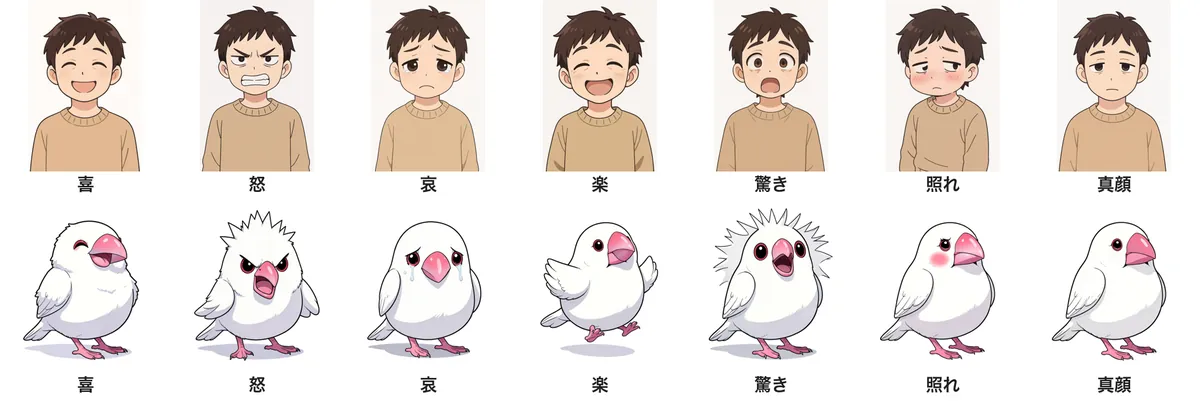
In manga, pick up a color palette for hair, eyes and clothes from the reference sheet, and batch-generate an overnight expression sheet: joy, anger, sadness, fun, surprise, embarrassment and a neutral face. For a single panel, generate expressions just for that panel.
-
5Save to your character library and reuse
A locked character can be saved to your character library (/studio/characters) with its reference sheet, expressions and outfits. Then you can start a novel, manga, video or explainer video with that character and keep the same face. Saving and reusing characters is free.
When the look needs to change mid-story
Sometimes the story calls for a new look: a haircut, or the character growing older. In video, edit the character's look note and it takes priority over the project's character profile (for example, "man in his 40s, black suit"). Shots still using the old look are flagged, so you can regenerate only those.
If only the clothes change, add an outfit and switch outfits per scene. That keeps the face recognizable while the costume changes.
Using the same locked character in both manga and video keeps the whole project visually consistent.
Per-panel prompts: expression, angle and place only
A common mistake after locking is describing the look again in each panel's instructions. Writing "a blonde girl laughs" can pull the image toward a different blonde than the one on your sheet. Leave the look to the reference sheet and look note, and write only expression, facing direction, pose and setting per panel.
If a panel still drifts, fix just that one: in manga, use the fix-this-panel option to adjust expression, angle or background; in video, use the edit-with-words option on the image storyboard. Fixing only the panels that drifted takes far fewer credits and less time than regenerating everything.
Templates that use a locked character
Lock your original character and every four-panel strip or social post can become part of a series. Use only characters you hold the rights to. Names and looks of real people or characters from existing works cannot be used.
-
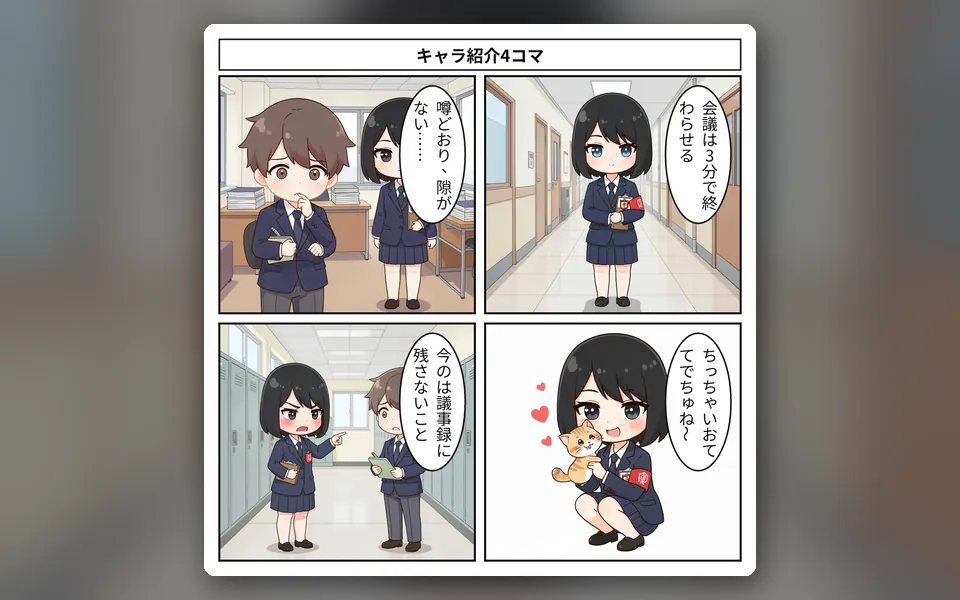
Character intro four-panel strip
Introduce your locked character's personality and catchphrase in four panels, for readers meeting them for the first time.
Use this template -
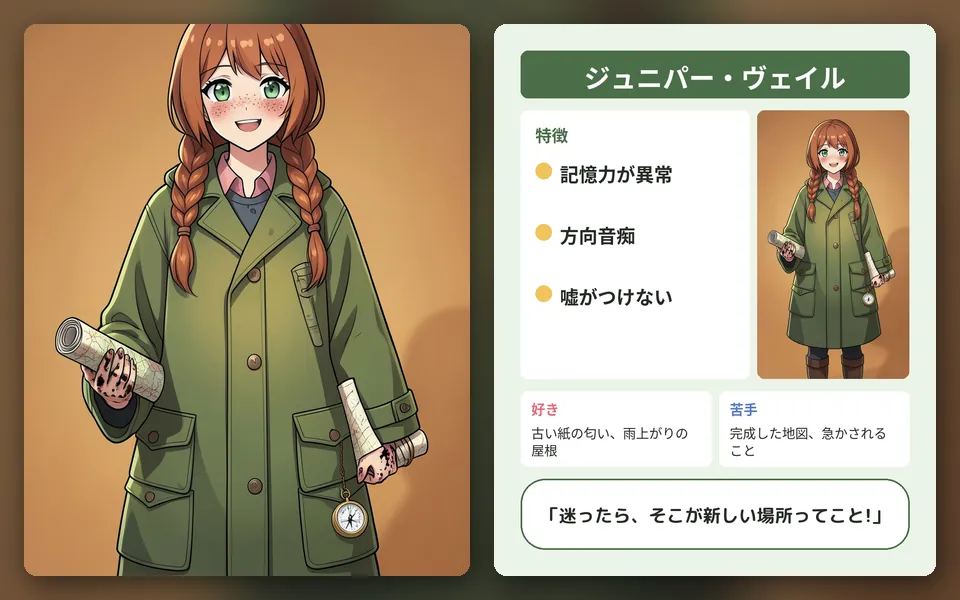
Profile card
A character introduction image for your profile or announcements.
Use this template
See also: Make a four-panel comic on your phone / BunCho Studio overview
FAQ
Will locking give me exactly the same image every time?
Not exactly, but because the reference sheet and look description go to every panel and shot, the face, hair and clothes are much less likely to change. You can redraw just the panels that bother you.
Can I use character art I drew myself?
Yes. You can upload an image in the reference sheet panel, and you can also start from a PNG character image or a PSD file. Only use characters you hold the rights to.
Do reference sheets and expressions cost credits?
Each image uses credits, and you see an estimate before anything runs. On the higher plans, images made on BunCho's own GPUs cost 0 credits up to a guideline limit. Saving to and using the character library is free.
Can I use a character from an existing anime, or a real person?
No. Please create original characters. Names and looks of real people or characters from existing works cannot be used.
Pages we checked for this guide
- BunCho Studio (English) bun-cho.work · primary source
Features, prices and screens are as of October 12, 2026 and may change. Images are actual BunCho screens (some show the Japanese interface) and samples made in the Studio. Japanese original