Make a Music Video for Your Song: Anime Opening, Dance or Lyric Video
The song is finished, but there's no budget to commission art or animation for a video. Pick the music video's format first, and even a small number of shots can fit the song. This guide shows how to make a music video for an original song with BunCho's music video tool (the anime opening and MV maker), and how to plan shots for each format.
Pick one of three music video formats
Music video formats differ in where the time and effort go. Choose by the song's character and by what you want to show: the characters, the story or the words.
- Anime opening style: a 60 to 90 second opening built from your characters, key scenes and title, like the title sequence of a TV anime. Title in the intro, daily life in the verse, tension in the pre-chorus, action at the top of the chorus, and the whole cast in one shot at the outro
- Character dance video: your original character dances to the song. Still poses swap on the beat so it looks like dancing, and only a few shots, such as the top of the chorus, are truly animated
- Lyric video: the words are the star. A few still backgrounds, with lyrics appearing and fading in time with the vocals. Best for songs whose words you want heard
-
Anime opening, 90 seconds
90 seconds, 19 shots (2 animated). Shots ride the song in 8-bar units at 160 BPM.
Use this template -
Character dance MV
2 minutes, 21 shots (3 animated). Still poses swap on the beat.
Use this template -
Lyric video
3 minutes, 17 shots (1 animated). Text size and color build step by step toward the chorus.
Use this template -
Chorus-only short
About 20 seconds, vertical. The strongest image in the first second, ending back on the first image so it loops.
Use this template
Cut to the song's sections
A music video feels in sync when the picture changes at the song's boundaries: bar lines and the switch from verse to chorus. In BunCho (pronounced "boon-cho" — Japanese for "Java sparrow"), importing a song lays out the verse, chorus, outro and other sections over the waveform, and shots switch automatically on the beat.
The key is not to animate everything. Even the templates animate only 2 or 3 shots and build the rest from stills. Save motion for the song's peak, such as the top of the chorus, and you get an impressive result with less time and fewer credits.
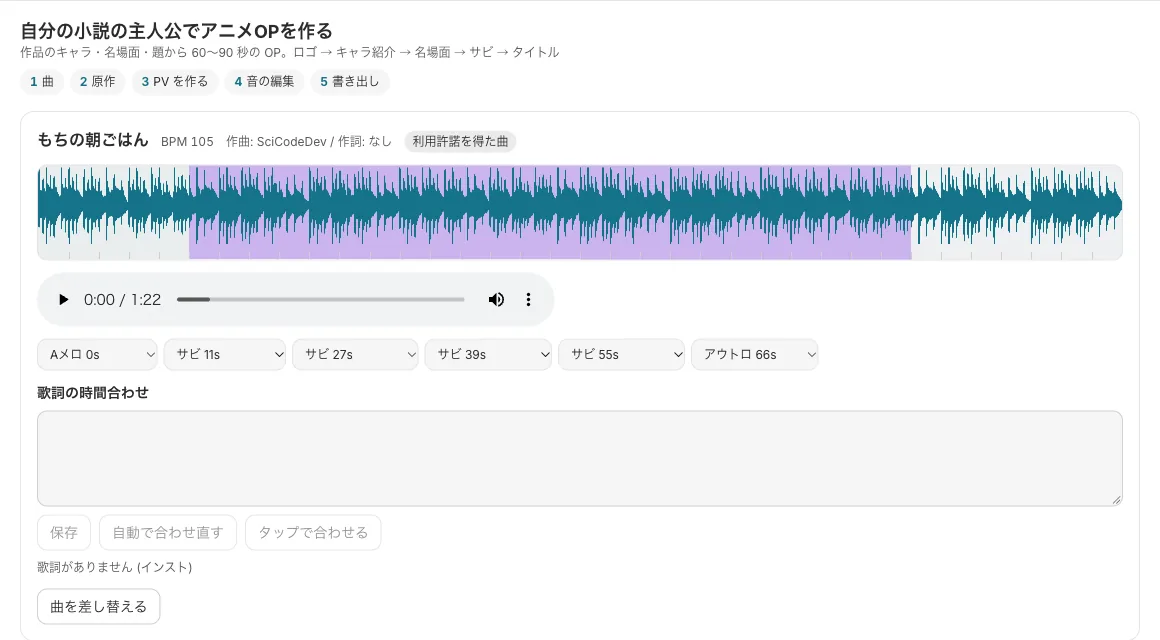
How to make a music video, step by step
Open your project's video and go to the music video tab (the anime opening and MV maker).
-
1Choose a starting point
Choose from making your original character dance, an anime opening with your novel's protagonist, a trending dance with your character, or free-form. Trending dances use only templates with licensed moves (with the creator's permission, or BunCho's own moves).
-
2Prepare the song
Upload a song you made or audio you are licensed to use. No song? The song maker can make a 30 to 120 second track with vocals from lyrics and a genre.
-
3Choose characters and story, then make the video
Choose the song, then the dance, then the source story, and make the video. Lock your characters' reference sheets first so every shot has the same face and outfit. Turn on lip sync and characters move their mouths to the lyrics.
-
4Choose how the lyrics appear
In audio editing, choose a lyric style: karaoke, soft fade, vertical text or big chorus. Lyric timing is automatic, and you can fix any drift by tapping along.
-
5Pick an export preset and export
Choose YouTube 16:9 (1080p or 4K), TikTok, Shorts or Reels 9:16, X 16:9, or X and Instagram 1:1. The share kit also makes a vertical promo clip and post text in one go.
Vertical promo clips and credits
To spread a song, post a chorus-only vertical short alongside the full music video. Make one with the share kit's vertical clip or the chorus-only short template.
Credits depend on video length and quality, and you see an estimate before creating. Video on BunCho's own GPUs (LTX) works for landscape (16:9) projects, and on the higher plans it costs 0 credits up to a guideline limit of 120 seconds a day. Vertical (9:16) video uses hosted models and does use credits. Lip sync also runs on BunCho's own GPUs.
Rights to watch for in songs and visuals
- Only bring in songs you wrote or are licensed to use
- Remixes are limited to your own songs or songs you have permission to remix
- Choreography is never copied from other artists' music videos. Dances come from templates with licensed moves
- Use only your original characters or characters you hold the rights to
See also: How to turn lyrics into a song / Commercial use of AI-made work
FAQ
Can I make a music video without a song?
Yes. The song maker creates a 30 to 120 second track with vocals from lyrics and a genre, which you can use directly as the video's song.
Can my character sing?
Turn on lip sync and the character moves their mouth to the lyrics. Lip sync runs on BunCho's own GPUs.
Can I export in 4K for YouTube?
Yes. The YouTube 16:9 preset offers 1080p or 4K. Download the exported file and upload it yourself.
Can I make a video for an existing song?
Only songs you wrote or audio you are licensed to use. Remixes are also limited to your own songs or songs you have permission to remix.
Pages we checked for this guide
- BunCho Studio (English) bun-cho.work · primary source
Features, prices and screens are as of October 12, 2026 and may change. Images are actual BunCho screens (some show the Japanese interface) and samples made in the Studio. Japanese original