How to Make a Vertical Short Drama: 60-Second Script to Video
The vertical short dramas on TikTok and YouTube Shorts run about a minute per episode and cut off just when you need to know what happens. Because they're so short, the script structure and shot breakdown decide everything. This guide covers a 60-second script structure and how to storyboard, animate, add subtitles and sound, and export vertically in BunCho's video editor.
A 60-second script: start in the middle, cut before the answer
Vertical dramas are watched mid-scroll. If nothing is happening in the first 2 seconds, viewers swipe to the next video. So instead of telling the incident from the beginning, you drop in at its middle.
BunCho's one-minute vertical short drama template is built on this idea. It opens mid-incident in the first 2 seconds, flips things once in the middle, and cuts right before the answer is shown. The 60-second episode is split into 15 shots, and only 2 of them are animated. BunCho is pronounced "boon-cho" — Japanese for "Java sparrow."
- 0 to 2 seconds: the middle of the incident (someone screams, something falls, someone sees what they shouldn't)
- First half: the bare minimum to understand the situation. Two or three characters at most
- Middle: one reversal (a line from someone we thought was an ally, a hidden fact)
- End: cut right before the answer. That's your bridge to the next episode
Don't animate everything: choose shots from the storyboard
Making all 60 seconds as AI video takes a lot of time and credits. In a short drama, close-ups of expressions and setup shots work fine as stills. Save motion for the shots where movement itself carries meaning, like the 2-second hook or the moment of reversal.
BunCho's video editor doesn't jump straight to video. It first makes an image storyboard. You look over the shots in order and press the animate option only on the ones you want moving, so you confirm the overall flow first.
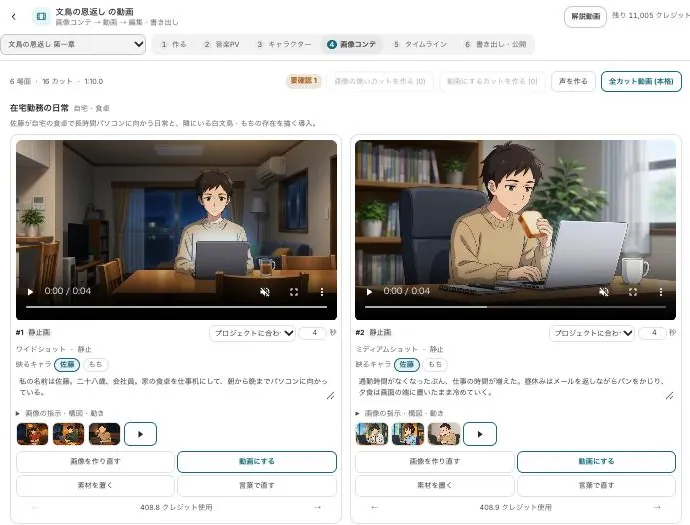
Make a vertical short drama in the video editor
Here's the flow from writing the script (as a chapter) in the Studio to building it in the video editor. Start from the template and the 15-shot structure and script outline are already in place.
-
1Write a script or start from the template
Create a project in the Studio and write one episode's script as a chapter. Choose the one-minute vertical short drama template and you start with the shot breakdown already in place.
-
2Pick the chapter, art style and 9:16
In the video Create tab, pick the chapter and choose an art style (anime, live-action, illustration and more) and an aspect ratio. For vertical, use 9:16. Ratios include 16:9, 9:16, 1:1, 4:5 and 2.39:1, and you can re-export in another ratio later.
-
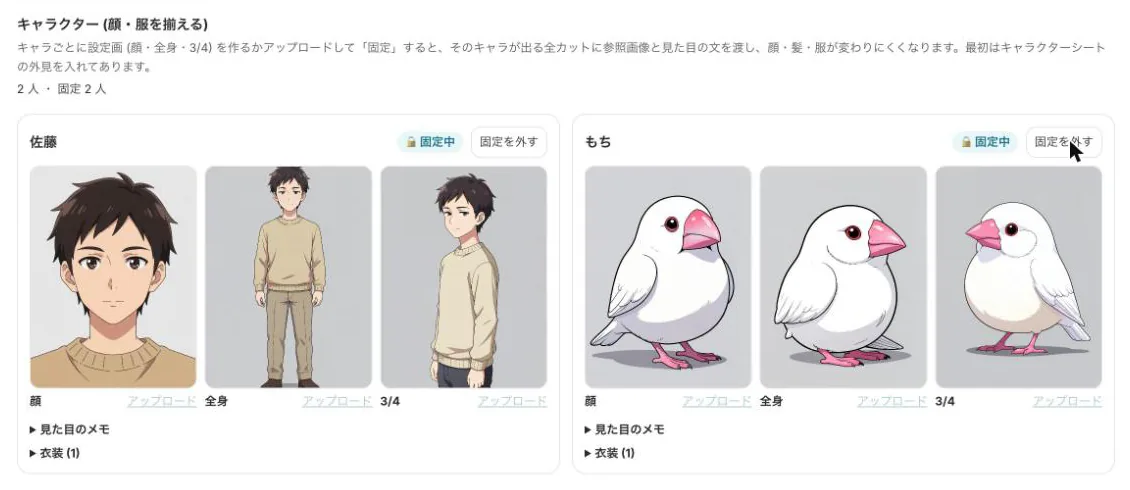
3Lock your characters
In the Characters tab, create a reference sheet (face, full body, three-quarter view) for each character and lock it. Locked characters keep the same face and outfit in every shot. There's also a setting to retry automatically once if a shot drifts.
-
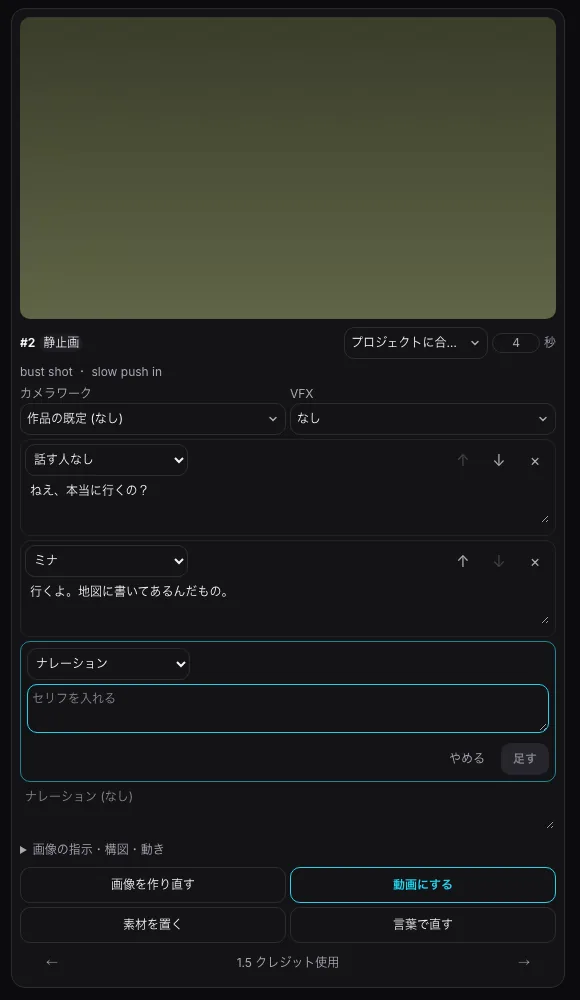
4Make the storyboard, then fix lines and images
Check the estimate and make the image storyboard. On each card you can add, rewrite or reorder dialogue, and fix the image by writing an instruction such as "make it evening" in the edit-with-words box.
-
5Animate only the shots that need motion
Select the hook and the reversal shots and animate them. You can also choose camera moves (40 types) and VFX (18 types) per shot. Vertical (9:16) video is made with hosted models, so it uses credits.
-
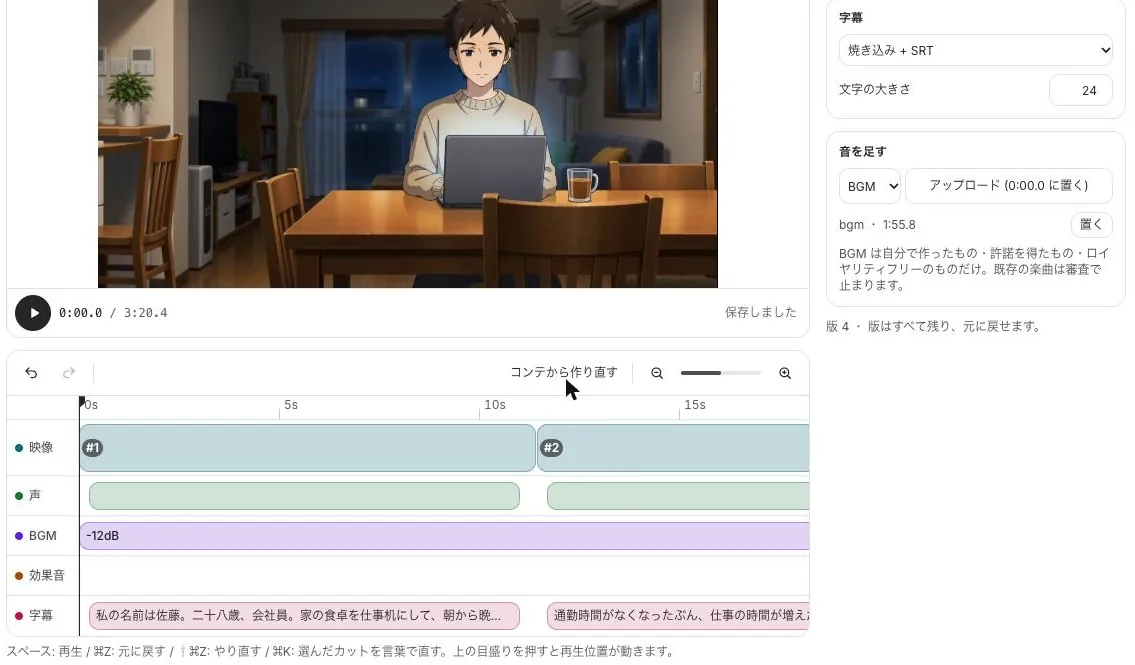
6Add sound and subtitles on the timeline, then export
The timeline has tracks for voice, music, sound effects and subtitles, and music can duck automatically under voices. Burn subtitles into the video or export them as SRT, and export MP4 from 480p up to 4K (2160p).
How credits work for vertical video
AI video credits depend on length in seconds and the model (quality), and the screen shows the credits per second. Video on BunCho's own GPUs (LTX) only works for landscape (16:9) projects, so vertical (9:16) shots use hosted models (economy, standard, high quality and others) and use credits on every plan.
Two ways to keep credits down: animate only the shots you need, and raise quality only for the showpiece shots. You can choose the model and quality per shot, and large runs always show an estimate and ask for confirmation first. During the free trial, video is limited to 30 seconds total, in one project.
Start from a template
A fixed script structure keeps each episode's production steady. For a series, lock your characters and save them to your character library so they keep the same faces in the next episode.
-
One-minute vertical short drama
60 seconds, 15 shots (2 animated). Start mid-incident, cut right before the answer.
Use this template -
Character intro vertical video
Introduce one character in 30 seconds: name, look, catchphrase, weakness, signature line. Good for introducing a drama's cast.
Use this template
Before you publish
- Video using real people's faces or names can't be made. Create original characters
- To post on social media, download the exported MP4 and upload it to each service yourself
- Each platform has its own rules on labeling AI-made video, so check their current policies
- To finish in an editing app, hand off to Premiere via XML
See also: How to keep an AI character consistent / BunCho Studio overview
FAQ
Does making a vertical short drama use credits?
Vertical (9:16) video uses hosted models, so it uses credits on every plan. The amount depends on length and model, and you see an estimate first. Animating fewer shots keeps it down.
Can I make a live-action-style drama?
You can choose a live-action art style. Video using real people's faces or names can't be made, though.
Won't characters' faces change from shot to shot?
Create reference sheets in the Characters tab and lock them, and every shot keeps the same face and outfit.
Can I try it for free?
The Studio is free for your first 7 days (500 credits). During the trial, video is limited to 30 seconds total, in one project.
Pages we checked for this guide
- BunCho Studio (English) bun-cho.work · primary source
Features, prices and screens are as of October 12, 2026 and may change. Images are actual BunCho screens (some show the Japanese interface) and samples made in the Studio. Japanese original