What Is "Cursor for Stories"? A New Way to Write Fiction with AI
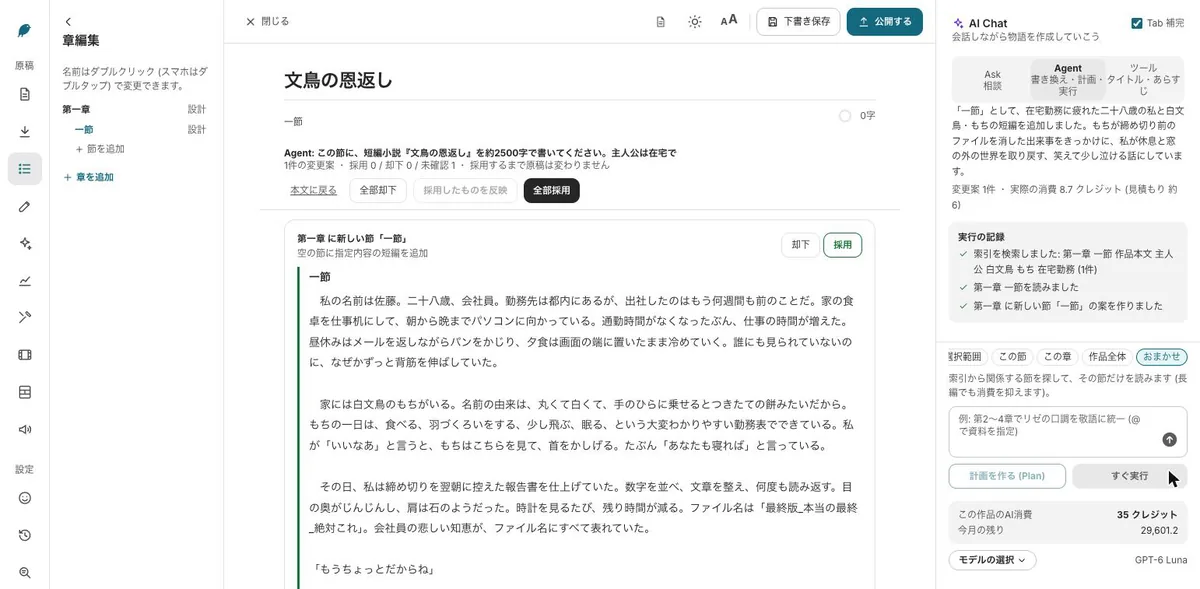
BunCho Studio calls itself "Cursor for stories." Cursor is a code editor programmers use to write software together with AI. You don't need to know it. This guide explains, with real screenshots, what that idea means for people who write fiction. The core of it: the AI writes, and you choose what goes into your manuscript.
What the "Cursor for stories" metaphor means
In programming, it's now common to review AI-suggested code by comparing the before and after, then pull it in. Cursor is the best-known tool for working this way. What matters is that the AI doesn't write everything unsupervised; a person checks and accepts each change.
BunCho (pronounced "boon-cho" — Japanese for "Java sparrow") brings that idea to storytelling. Your manuscript is split into chapters and sections, and every AI suggestion appears as a before-and-after diff. Not a single character changes until you press Accept. And unlike a code tool, the story and characters you write can become manga, video and songs.
Three tools: write, revise, revise everything
The Studio's writing AI comes in three main forms. All of them follow the same promise: you see the suggestion, then decide.
- Tab completion: when you pause, the next 1 to 3 sentences appear in faint text. Tab accepts all, Cmd+Right Arrow accepts one phrase at a time, Esc dismisses. On a phone, use the accept-continuation button
- Cmd+K (Ctrl+K on Windows, the fix-with-AI option on a phone): rewrites just the selected text by your instruction, such as "more tension" or "make it formal." Leave it blank for a general polish
- AI chat: in the side panel, discuss plot (Ask), rewrite the text (Agent), or make titles and blurbs (Tools). In Ask, use @ to point at a chapter, character or worldbuilding note
How to revise a whole project with the Agent
For edits that span several chapters, hand the job to the Agent. Choose the scope, read the plan, check the diff, then accept.
-
1Choose the scope
In the side panel, choose Agent and set the scope: selection, this section, this chapter, whole project, or automatic. Automatic searches an index for the relevant sections and reads only those.
-
2Write the instruction and make a plan
Write something like "In chapters 2 to 4, make Liza speak formally throughout" and press Plan. If you're in a hurry, you can run it right away. You always see an estimate first, and if a run looks likely to go well over the estimate, it stops automatically.
-
3Read the diff and accept
Changes are proposed section by section. Accept the ones you like and reject the rest, or accept or reject all at once. Anything you don't accept leaves the text as it was.
-
4If something goes wrong, roll back to a checkpoint
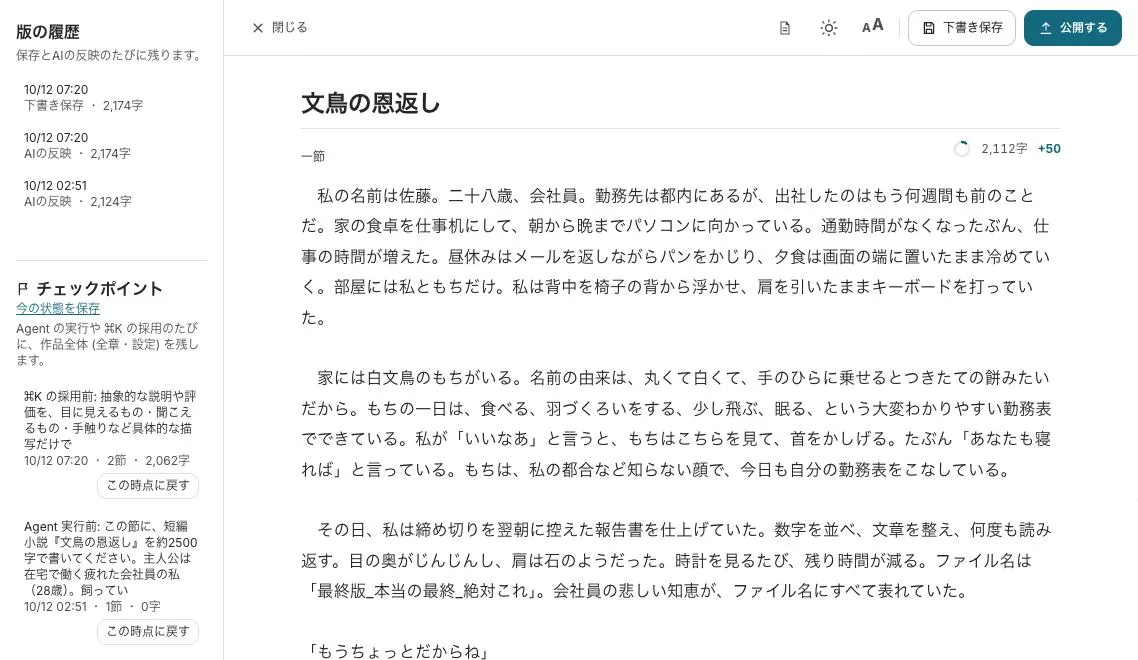
The state before each Agent run and before each Cmd+K accept is saved automatically as a checkpoint. Pick one from the history on the left and restore the whole project to that point. The state just before you restore is saved too, so rolling back too far is safe.
Character profiles and world notes go into every request
Just as a code tool reads the whole project's files before suggesting, the Studio's AI reads your story's setup before writing. Set up character profiles (simple, detailed or tabletop-RPG style), worldbuilding notes and writing rules, and they are passed to the AI when you brainstorm, generate text or run checks.
You can also extract characters from text you've already written, with the source sections cited, and search for contradictions between your notes and the text, such as hair color or how characters address each other. In a long novel, this keeps voices and details from drifting as you write.
See also: BunCho for writers
The same characters in manga, video and song
The looks you set in character profiles carry over to manga panels and video shots. Open a chapter and turn it into a four-panel strip; pick a chapter and go from storyboard to video; make a song from lyrics and turn it into a music video. Novel, manga and video aren't separate files but connected parts of one project.
To change a character's look partway through a video, edit the character's look note. Shots still using the old look are flagged, so you can regenerate only those. The AI and the author check the scope of a change together, just as with text.
-
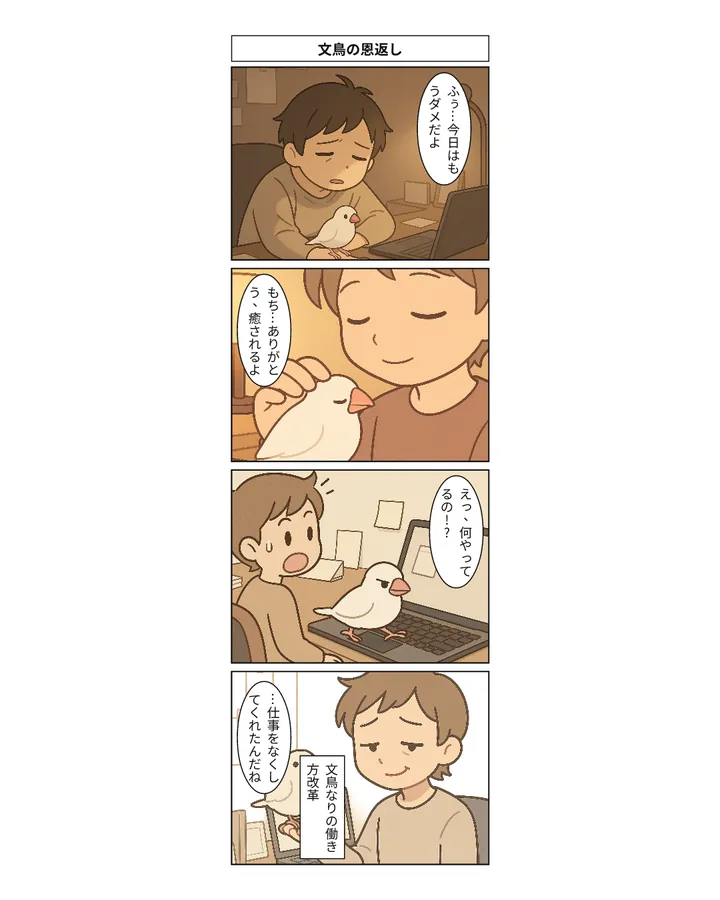
A key scene as a strip
A trial that turns a chapter you wrote into a four-panel strip. Free, one per day, once you log in.
Try it with your story -
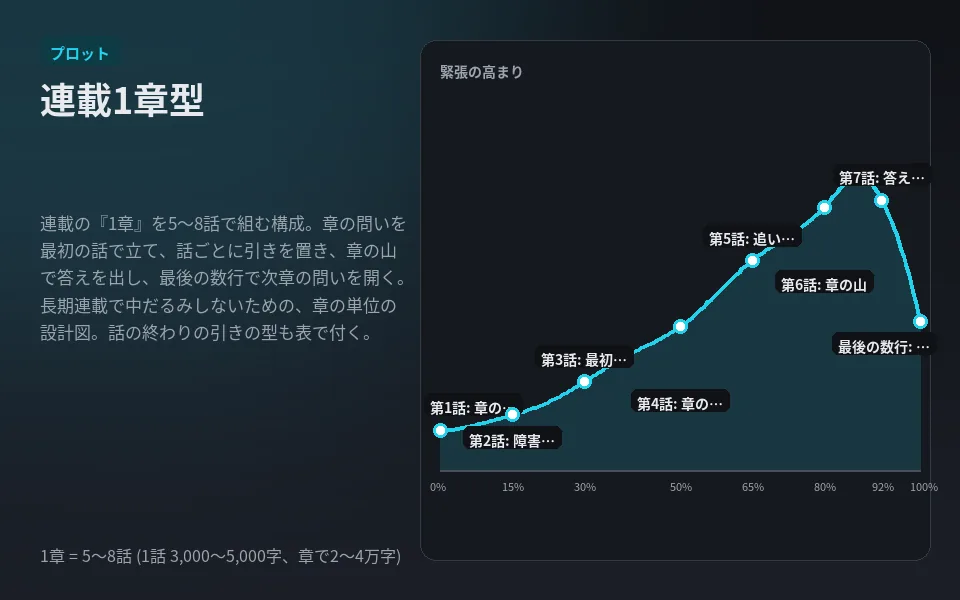
Serial chapter 1 template
Start writing from a first-chapter structure that tends to do well with web novel readers.
Use this template
Coming next: apply one setup change across the whole story
Planned: when you change one fact (for example, a character who dies in chapter 4 now survives), a feature that finds every affected chapter and scene and revises them together. No release date has been set. For now, you can make the same kind of edit by setting the Agent's scope to the whole project, giving the instruction, and accepting from the diff.
FAQ
Will the AI ever change my manuscript on its own?
No. With Tab completion, Cmd+K and the Agent alike, changes are shown as a diff first, and the manuscript doesn't change until you press Accept. The state before you accept is saved as a checkpoint.
Do I need to know programming?
No. "Cursor for stories" is just a metaphor. You select text, write an instruction, read the result and accept it.
Does it work on a phone?
Yes. It runs in the browser, so no app install is needed. Cmd+K is the fix-with-AI option in the selection menu, and Tab completion is the accept-continuation button.
Can I try it for free?
The Studio has a 7-day free trial with 500 credits. The Agent always shows an estimate before it runs.
Pages we checked for this guide
- BunCho Studio (English) bun-cho.work · primary source
- BunCho: Cursor for writers (English) bun-cho.work · primary source
Features, prices and screens are as of October 12, 2026 and may change. Images are actual BunCho screens (some show the Japanese interface) and samples made in the Studio. Japanese original