Turn a Character You Made in ChatGPT into Manga
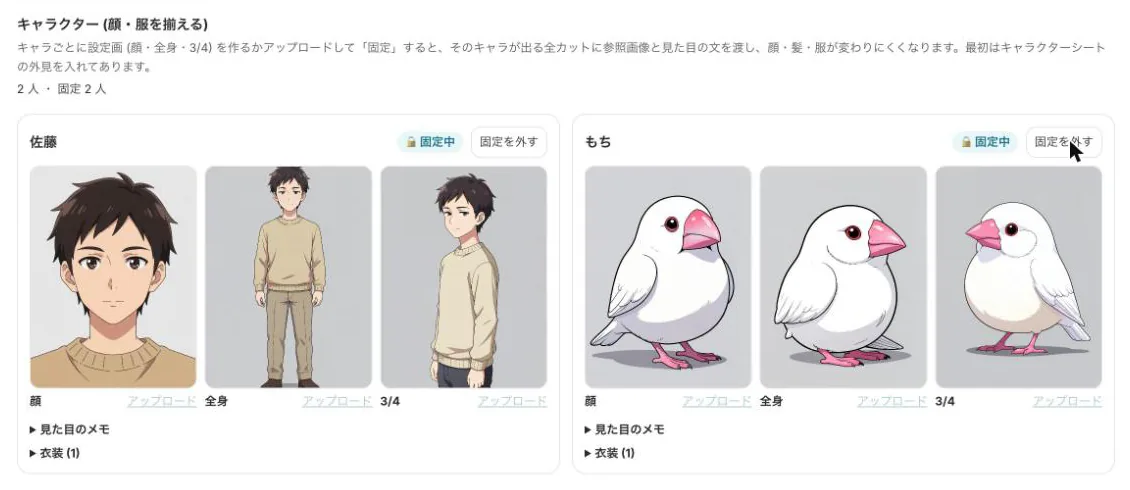
Characters you build in a ChatGPT conversation end up scattered across the chat, and details like age or voice can drift. This guide shows how to import those notes into BunCho, clean up contradictions, lock the look, and then draw the manga.
Collect the notes from your chat
First, gather the scattered details into one text. Asking ChatGPT to "write this character's profile with Name, Age, Appearance and Personality fields" gives you something easy to import.
Use a label and a colon per field ("Name: Mina", "Age: 17"). Appearance (hair, eyes, clothes) matters most for the reference sheets later.
From notes to manga
-
1Paste and preview (free, no sign-up)
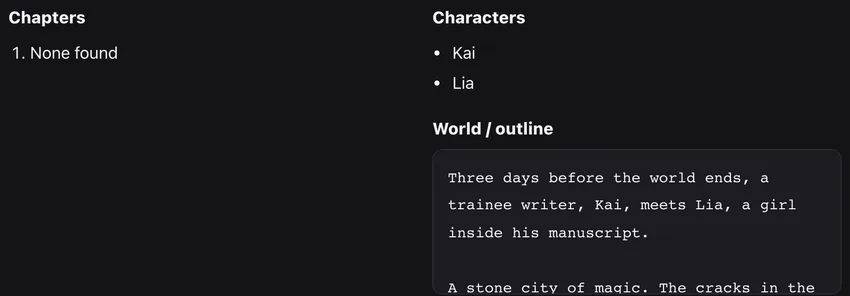
On bun-cho.work/en/import, open "Paste a Story Bible", paste the notes with the headings Synopsis, Characters and Worldbuilding, and press Convert. The preview shows characters and world notes separately so you can confirm they were read correctly.
-
2Import them as character notes in the Studio
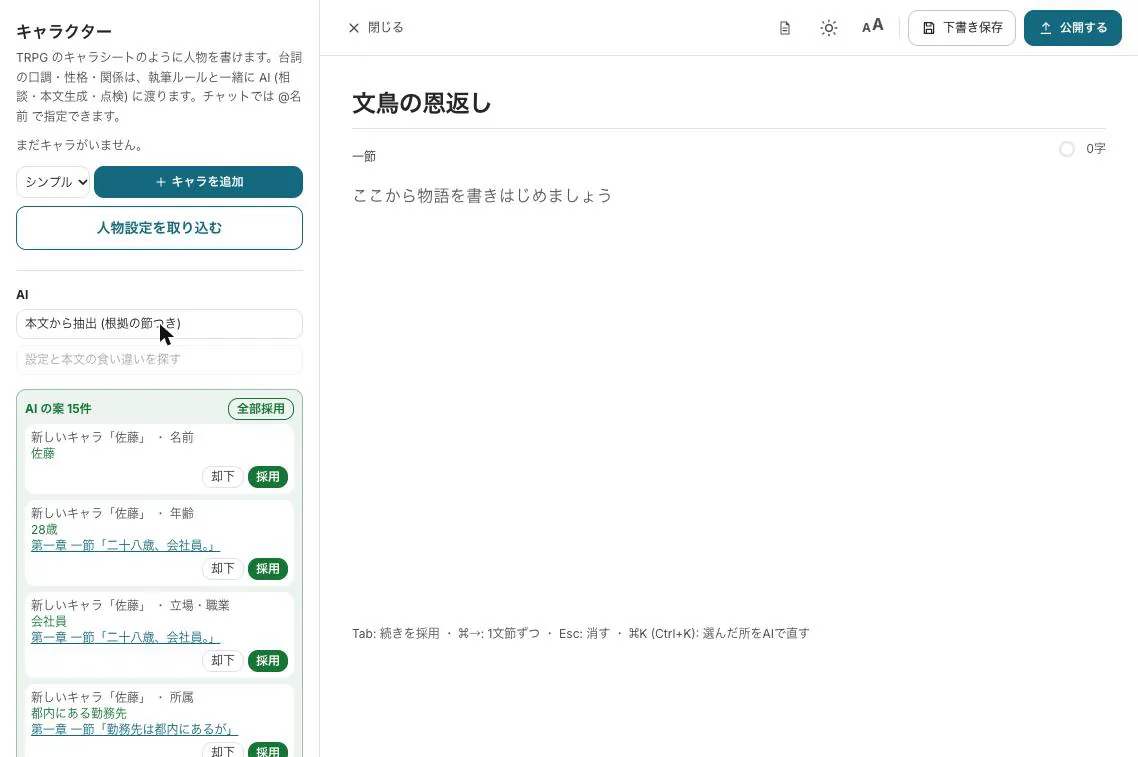
Save to the Studio, or in a work's editor open the character panel and choose "Import character notes". Fields such as name, age and personality are read in a free preview, and the original text is kept as a note.
-
3Check against your manuscript
If you also have chapters written with ChatGPT, fix age, color and name slips first with the importer's check results. In the Studio, "Find contradictions between sheets and manuscript" lists mismatches with links to the sections (it uses AI, so you see an estimate first).
-
4Create and lock reference sheets
In the character panel of the manga Create tab, make reference sheets (face, full body, 3/4) and lock the one you like. Locked characters keep the same face, hair and clothes in every panel.
-
5Make a four-panel strip or a page
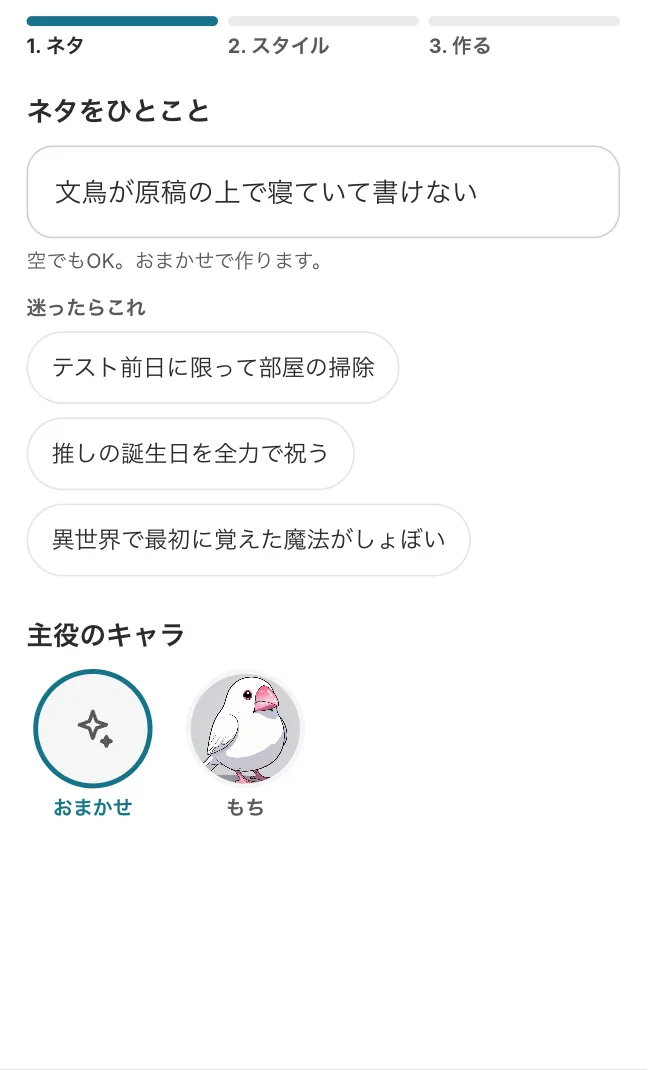
Open the chapter with the scene and turn it into a four-panel strip, or choose page format in the manga screen. You get three structure options for a strip; confirm the estimate before drawing and redraw only the panels you want.
Prefer to stay in the chat?
If you would rather not leave ChatGPT or Claude, connect the BunCho connector and make strips and pages inside the conversation. For a character you will draw again and again, importing into the Studio as above works better.
See also: Turn a ChatGPT or Claude chat into manga (connector)
Before you start
ChatGPT is a service of OpenAI. BunCho is not affiliated with OpenAI; this guide only describes how to finish characters made with it.
- Import only characters you created or have permission to use
- Don't base characters on real people or copy characters from other works
- Check the AI rules of the site where you will publish
FAQ
Does importing cost anything?
The importer's preview and checks, and the Studio's character-notes preview, are free. Organizing with AI, the contradiction check and drawing show a credit estimate before they run.
Can I paste the whole chat?
You can, but notes grouped by field are read more accurately. Ask ChatGPT for a clean profile first, then paste that.
Will the face change from panel to panel?
Lock a reference sheet and the character is drawn with the same face, hair and clothes in every panel.
Pages we checked for this guide
- BunCho free importer bun-cho.work · primary source
- BunCho Studio (English) bun-cho.work · primary source
Features, prices and screens are as of October 13, 2026 and may change. Images are actual BunCho screens (some show the Japanese interface) and samples made in the Studio. Japanese original