AI video from your story
Turn your story into video with AI
Turn a story you wrote into a live-action-style short, a vertical drama, anime or a music video. BunCho Studio builds an image storyboard from a chapter, animates the shots while keeping faces consistent, and finishes the piece with voice, music, sound effects and subtitles on one screen.
Make it in the StudioSee the samples
7-day free trial (1,000 credits on any plan; video limited to one work and 30 seconds in total). You see an estimate before anything is generated.

Video made with BunCho
Real samples made in BunCho Studio: a live-action-style short film, a vertical drama series, a music video, an anime-style opening and video made from a novel chapter.


All are fictional works made with AI; the characters do not exist. Some samples have Japanese dialogue or subtitles.
What BunCho gives you for video
From chapter to storyboard to video
Choose a chapter, a style and an aspect ratio, and get an image storyboard scene by scene. Turn each shot into video and join them on the timeline.
Consistent faces and outfits
Lock character sheets and every shot is made from them. A shot that drifts can be remade on its own.
Quality and camera per shot
Choose the video quality per shot, plus 40 camera moves and 18 VFX. An estimate comes before every run.
Songs and music videos
Make a 30–120 second song from lyrics and a genre, then a music video or an anime-style opening with your characters. Characters can lip-sync to the song.
Trailers and promo kits
From a work, make trailers (9:16 or 16:9, 15 or 30 seconds), key visuals and thumbnails, and post text, and download them as a ZIP.
Voice comics and audio dramas
Add voices and motion to a finished comic for a vertical video, or turn a chapter into an audio drama with a cast.
From a novel chapter to a finished video
Storyboard, characters, shots and sound on one screen. The screenshots show the Japanese version of the Studio.
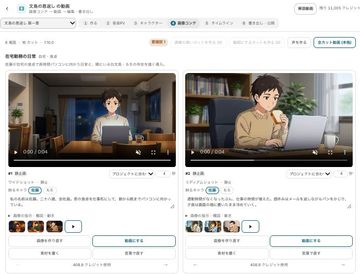
Pick a chapter and build the storyboard
In the video editor, choose a chapter, a visual style (anime, live-action, illustration and more) and an aspect ratio (16:9, 9:16, 2.39:1 and more). You get an image storyboard scene by scene, and you fix the order and the images there.
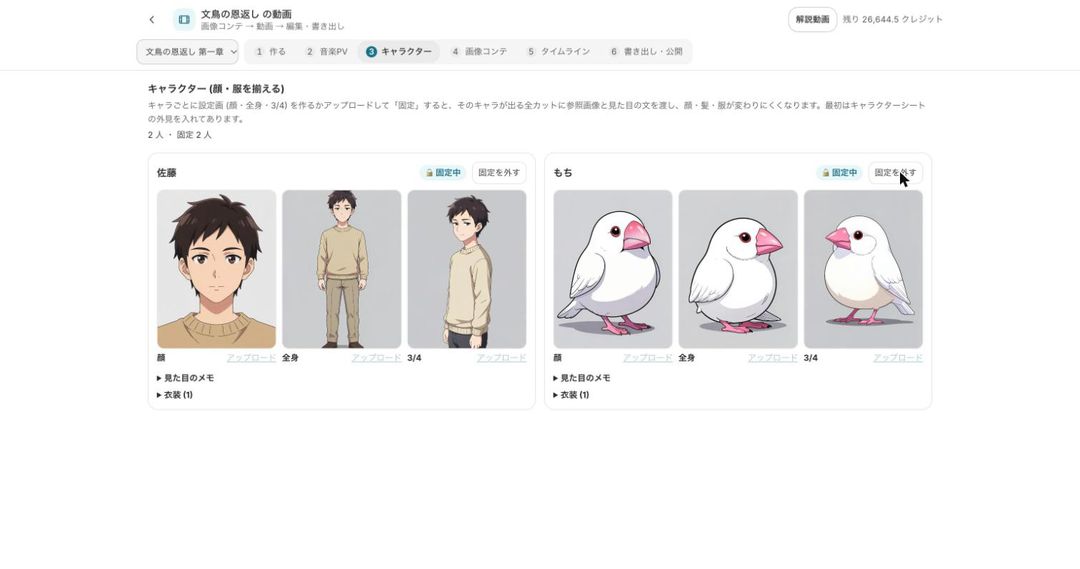
Lock the characters
Lock character sheets in the character tab and every shot is made from them, so the lead doesn’t turn into someone else from shot to shot. A shot that drifts can be remade on its own.
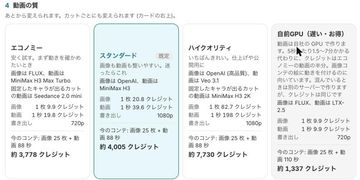
Choose the quality and animate the shots
Pick a video quality per shot, from economy to high quality or a slow, low-cost option, and turn the shots into video. Choose from 40 camera moves and 18 VFX. You see an estimate before each run.
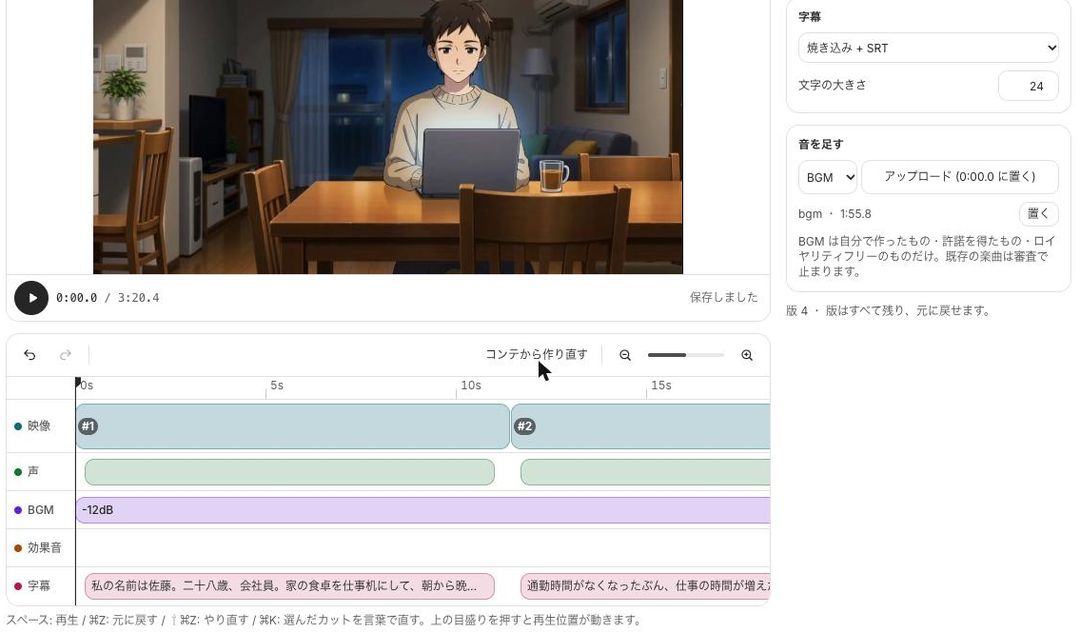
Add sound and export
The timeline has tracks for voice, music, sound effects and subtitles, and the music can duck under the voice. Export from 480p up to 4K (2160p) in landscape for YouTube or vertical for short-video apps, or hand the timeline off as XML.


What you can make
Video formats in BunCho Studio and where each one starts.
| Format | Starts from | Export |
|---|---|---|
| Live-action-style short film | A novel chapter or a script | 16:9 or 2.39:1, up to 4K |
| Vertical short drama | The 60-second, 15-shot episode template or your script | 9:16, 1080p, SRT subtitles |
| Music video / anime-style opening | A song you made in the Studio or your own song | 16:9, 9:16 or 1:1 |
| Trailer and promo kit | A finished work | 9:16 or 16:9, 15 or 30 seconds, ZIP with images and post text |
| Voice comic / audio drama | A finished comic or a chapter | Vertical or horizontal video |
Pricing and free trial
- The Studio is used on a paid plan. New users get a 7-day free trial with 1,000 credits on any plan; during the trial, video is limited to one work and 30 seconds in total.
- Video credits depend on the length and the quality you choose for each shot. Every step shows an estimate before it runs.
- Editing dialogue on the storyboard and the pre-export mismatch check use no credits.
Rules for AI-made video
- Footage, voices and images are made with AI. An AI-generated notice is added to the end of exported videos.
- You cannot use real people’s faces, names or voices, or characters from other people’s works.
- Music must be your own, licensed or royalty-free. Existing commercial songs are stopped at the export review, and you cannot recreate a real singer’s voice.
FAQ
How many credits does video use?
It depends on the length and the quality you choose for each shot. Every step shows an estimate before it runs. During the free trial, video is limited to one work and 30 seconds in total.
Can the same character look the same in every shot?
Lock character sheets and every shot is made from them, which reduces the lead turning into someone else. A shot that drifts can be remade on its own.
Which resolutions and aspect ratios can I export?
Landscape for YouTube, vertical for short-video apps and more, from 480p up to 4K (2160p). The timeline can also be handed off as XML to other editing software.
Can I use existing songs or a real singer’s voice?
No. Music must be your own, licensed or royalty-free, and real singers’ voices cannot be recreated. Existing commercial songs are stopped at the export review.
Can I make vertical videos for short-video apps?
Yes. Choose 9:16 when you start, or start from the vertical short drama template. See the vertical short drama page for the 60-second episode format.
Turn your story into video
Storyboard, locked characters, shots and sound in one place, with an estimate before every step.
Make it in the StudioSee plans and pricing
7-day free trial (1,000 credits on any plan; video limited to one work and 30 seconds in total). You see an estimate before anything is generated.