Vertical short drama × AI
Make vertical short dramas with AI, one episode at a time
From a 60-second, 15-shot script template to a storyboard with consistent characters, video for the key shots, voice and subtitles, and a 9:16 MP4 export: all inside one work in BunCho Studio.
Start from the templateWatch the official samples
7-day free trial (1,000 credits on any plan; video limited to one work and 30 seconds in total). Opening a template and editing dialogue use no credits.
Vertical short dramas on our official channel
Vertical short dramas made with AI by the BunCho production team and published on our official YouTube channel. 60–75 seconds per episode, 9:16, with subtitles.


All are fictional stories made with AI; the characters do not exist. Audio and subtitles are in Japanese.
What BunCho gives you for vertical drama
A 60-second episode template
Open in the middle of the incident, flip it around the 30-second mark, and cut just before the answer. Start from a template with the 15-shot breakdown and dialogue slots.
Consistent faces
Lock face, full-body and three-quarter character sheets and they are passed to every shot with that character. Shots that drift are flagged so you can remake them.
Animate only the key shots
In the template only two shots, the hook and the near-reveal, become AI video. The rest are stills with a slow push-in, which keeps credits down.
Camera moves and VFX per shot
Choose from 40 camera moves and 18 VFX for each shot, and pick one of five video-quality levels.
Voice, music and subtitles on one screen
Generate the voices for the lines, then arrange video, voice, music, sound effects and subtitles on the timeline. Subtitles can be burned in, exported as SRT, or both.
Mismatch check before export
Check faces, outfits, number of people, on-screen text, voices, subtitles and lines for inconsistencies before you export, at no credit cost.
How one episode comes together
From opening the template to exporting a 9:16 MP4. The screenshots show the Japanese version of the Studio.
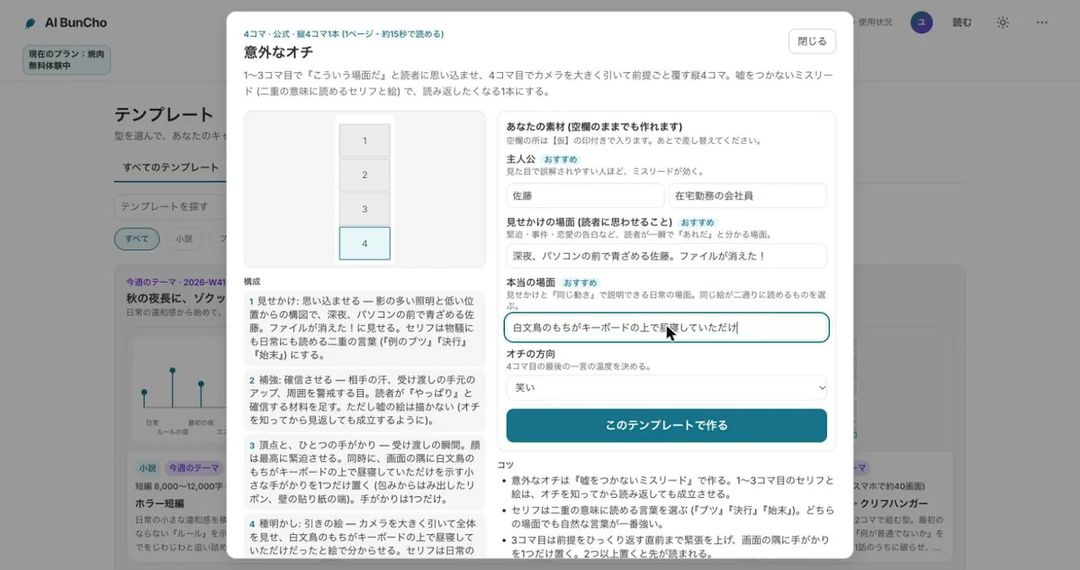
Open the template and add your material
Open “Vertical short drama, 1 episode / 1 minute”, enter the lead, the other character, what the ending almost reveals and the episode number, then create the project. You get a 9:16 project with a 15-shot breakdown and dialogue slots. No images are made yet, so no credits are used.
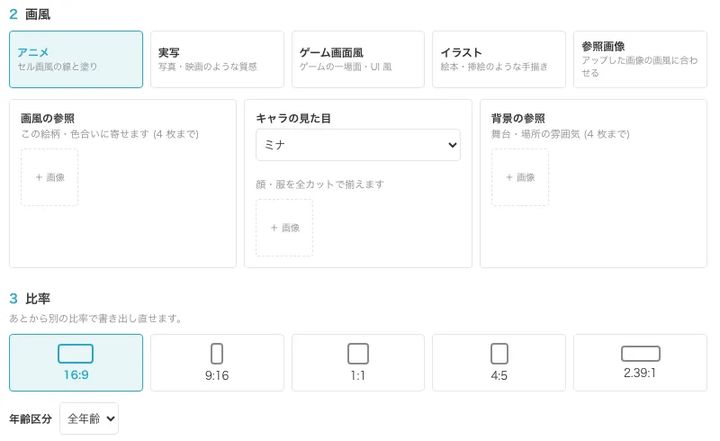
Pick the style, aspect ratio and video quality
Styles: anime, live-action, game screen, illustration or your reference image. Ratios: 9:16, 16:9, 1:1, 4:5 or 2.39:1. Video quality has five levels, so you choose between speed and credits. Starting from your own script, you pick a chapter and build the storyboard from it.
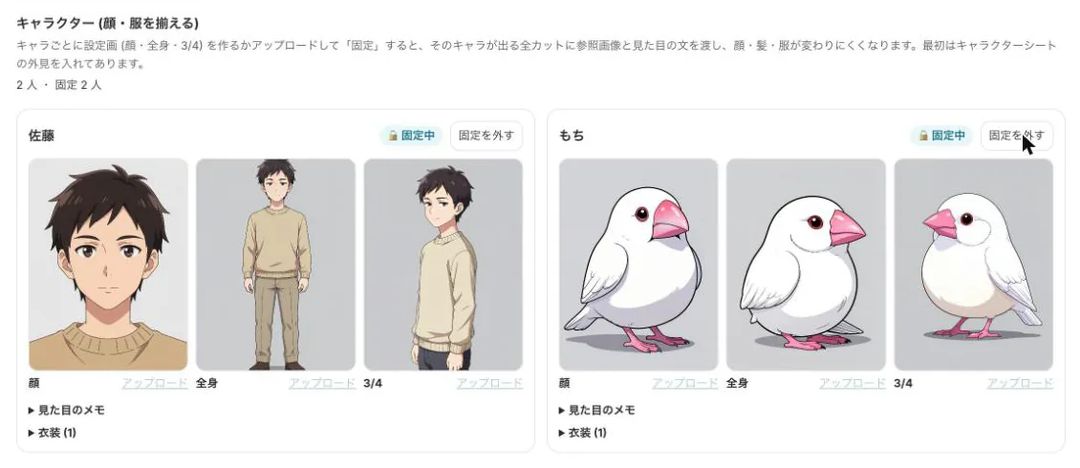
Make character sheets and lock them
Create face, full-body and three-quarter sheets, then lock them. Every shot with that character receives the sheets and the appearance notes. Shots where the face or outfit drifts from the sheet are flagged for review.
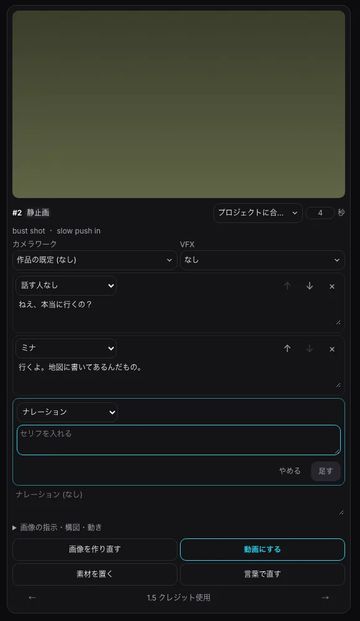
Rewrite the lines and fix images in words
On each storyboard card you edit the dialogue, the speaker, the camera move and the VFX. Editing dialogue costs no credits. To change an image, describe the fix in words, such as “make it the moment the papers hit the floor”.
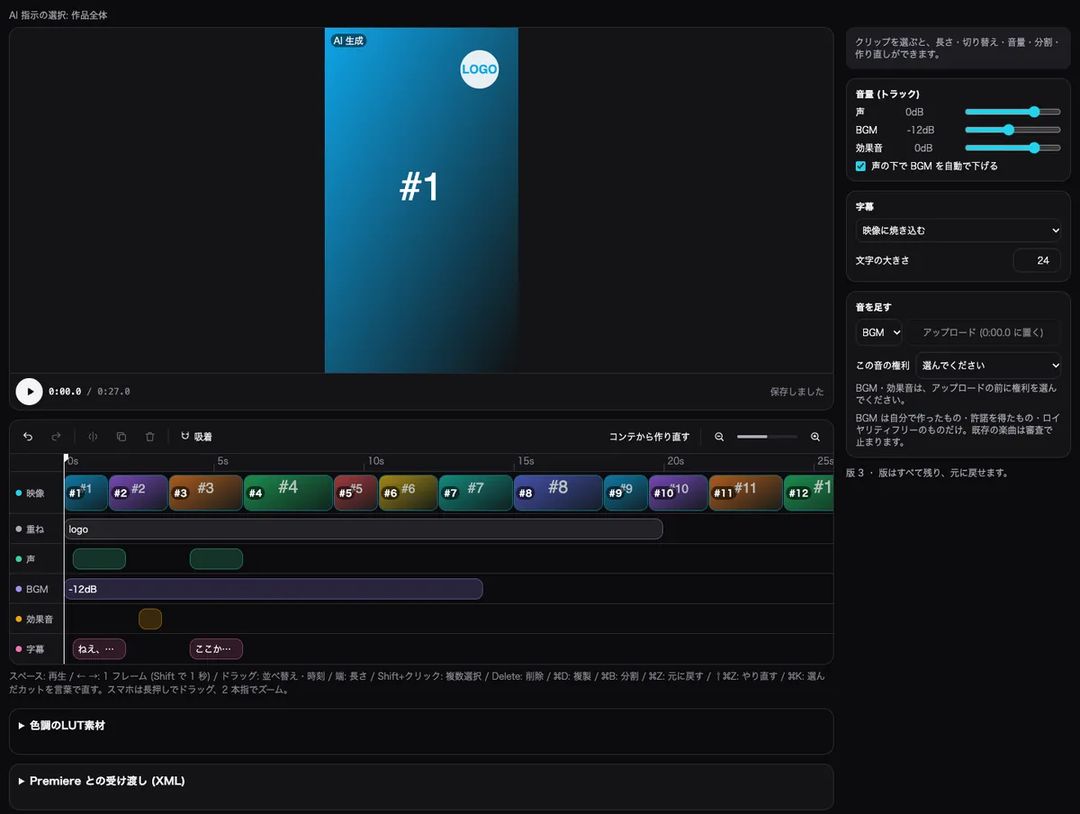
Choose the shots to animate; add voice, music and subtitles
You can turn only the key shots into AI video and show the rest as stills with a slow push-in. Building the timeline from the storyboard lays out video, voice, music, sound effects and subtitles on separate tracks, and the music can duck automatically under the voice.
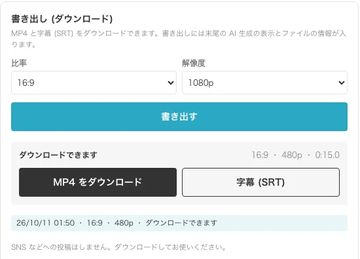
Check for mismatches and export in 9:16
Before exporting you can check for mismatches in faces, outfits, number of people, on-screen text, voices, subtitles and lines, at no credit cost. Download a 9:16, 1080p MP4 and an SRT subtitle file; an AI-generated notice is added at the end of the video.


The 60-second, 15-shot episode
This is the breakdown in the “Vertical short drama, 1 episode / 1 minute” template. Two shots become AI video; the rest are stills.
| Shot | Seconds | Role | Made as |
|---|---|---|---|
| 1 | 0–2 | Hook: start at the strongest moment of the incident | AI video |
| 2 | 2–6 | Situation: a wide shot of the same scene that shows who stands where | Still |
| 3 | 6–11 | Humiliation: one line from the aggressor | Still |
| 4 | 11–14 | Enduring: the lead’s hands | Still |
| 5 | 14–18 | Inner voice: “that’s not the truth” | Still |
| 6 | 18–23 | Arrival: the door opens and someone walks in | Still |
| 7 | 23–26 | The look: they see only the lead | Still |
| 8 | 26–31 | The flip: one line reverses the balance of power | Still |
| 9 | 31–34 | Shock: the aggressor’s face | Still |
| 10 | 34–38 | Pushback: the lead answers back for the first time | Still |
| 11 | 38–42 | Together: the two walk out side by side | Still |
| 12 | 42–46 | A new problem: an envelope is handed over | Still |
| 13 | 46–51 | Near-reveal: stop the moment the contents show | AI video |
| 14 | 51–55 | Hold: close on the lead’s eyes | Still |
| 15 | 55–60 | Next time: a teaser card on black | Still |
Pricing and free trial
- The Studio is used on a paid plan. New users get a 7-day free trial with 1,000 credits on any plan (video limited to one work and 30 seconds in total).
- AI video credits depend on the number of seconds and the video quality. You see an estimate before anything is generated, and large amounts ask for your confirmation.
- Opening a template, editing dialogue, building the timeline and the pre-export mismatch check use no credits.
Rules for AI-made video
- Footage, voices and images are made with AI. An AI-generated notice is added to the end of every exported video.
- You cannot use real people’s faces, names or voices, or characters from other people’s works. Your characters must be your own.
- Music must be your own, licensed or royalty-free. Existing commercial songs are stopped at the export review.
- Exports go through a review, and content resembling real people or existing works may be stopped. You can fix the flagged shots and export again.
FAQ
How many credits does one episode use?
It depends on how many seconds you turn into AI video and the video quality you choose. You see an estimate before generating. Opening a template, editing dialogue, building the timeline and the pre-export mismatch check use no credits.
Can I make it look like live action?
Yes, choose the live-action style. You cannot use real people’s faces, names or voices; your characters must be your own.
Can I export in other aspect ratios?
Besides 9:16 you can work in 16:9, 1:1, 4:5 and 2.39:1, and you can export again later in a different ratio.
What about music and sound effects?
Use music you made, music you have a license for, or royalty-free tracks; BunCho also provides some library material. Existing commercial songs are stopped at the export review. If you want to add a platform’s own music, export without music.
Can I add subtitles?
Add subtitles for every line on the timeline, then burn them into the video, export them as SRT, or both. For vertical exports, SRT lines are wrapped to fit the screen width.
Can I try it for free?
New users get a 7-day free trial with 1,000 credits on any plan. During the trial you can make video for one work, up to 30 seconds in total.
Start from the 60-second episode template
Fifteen shots that open in the middle of the incident and cut just before the answer. Check the flow on the storyboard, then animate only the shots you choose.
Start from the templateSee plans and pricing
7-day free trial (1,000 credits on any plan; video limited to one work and 30 seconds in total). Opening a template and editing dialogue use no credits.